![lutronic-red-tab-white.png]](https://support.lutronic.com/hs-fs/hubfs/Branding/lutronic-red-tab-white.png?height=50&name=lutronic-red-tab-white.png)
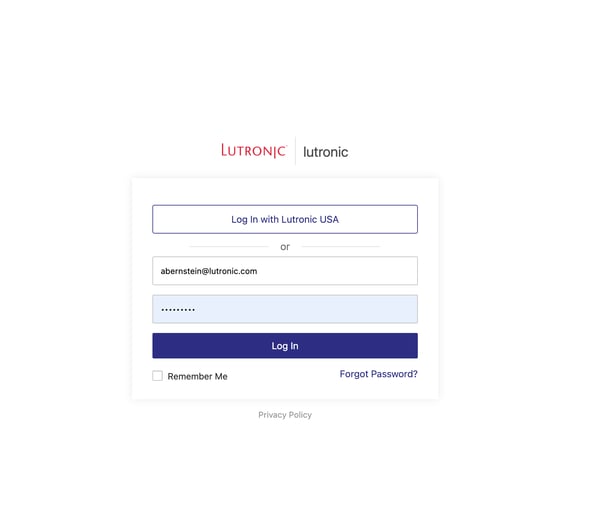
Log in at https://lutronic.showpad.biz/login
- Input Username and Password
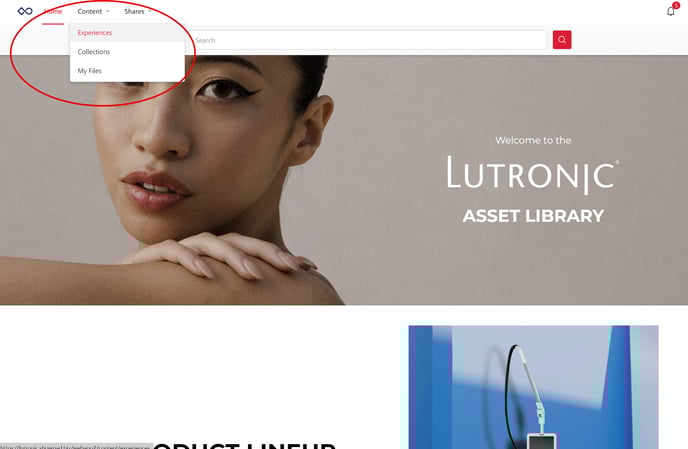
Hover over content and click on experiences.
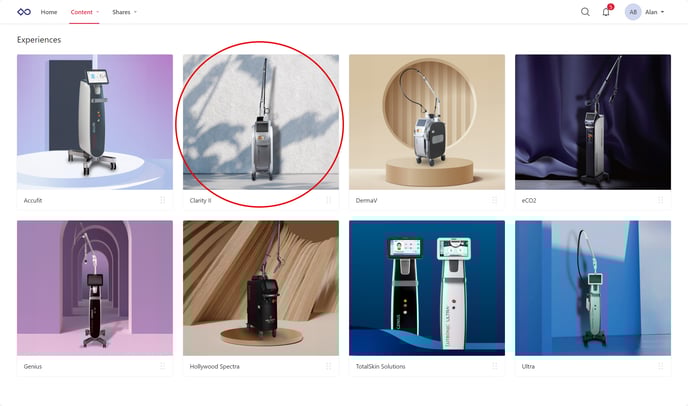
Click on a specific product tab.
Click on a specific folder.
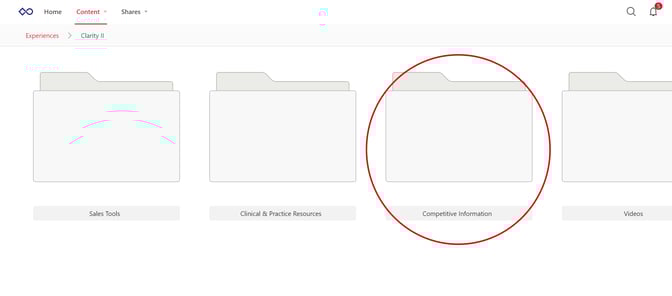
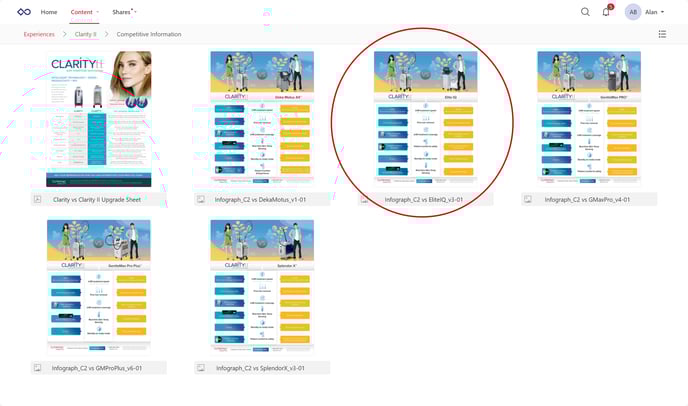
Click on a specific file.
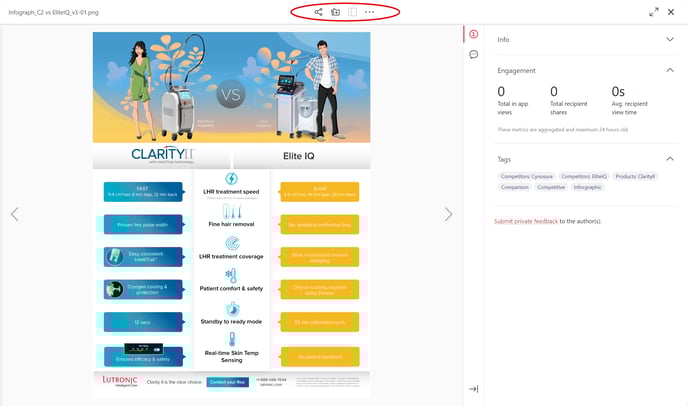
You will now have several options near the top of the screen.
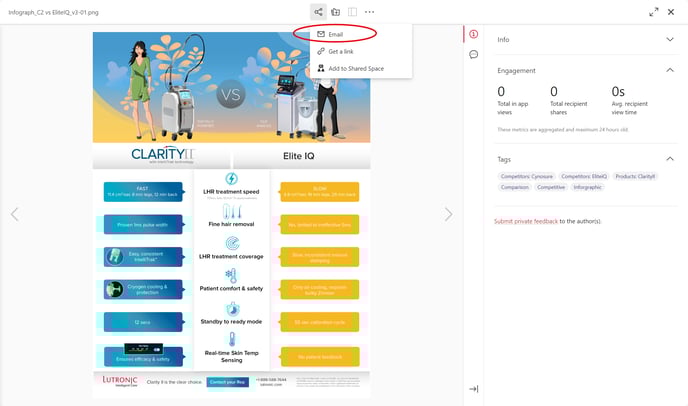
You can email the file to somebody directly by clicking on email.
Enter in email address/addresses that you would like to send the files to.
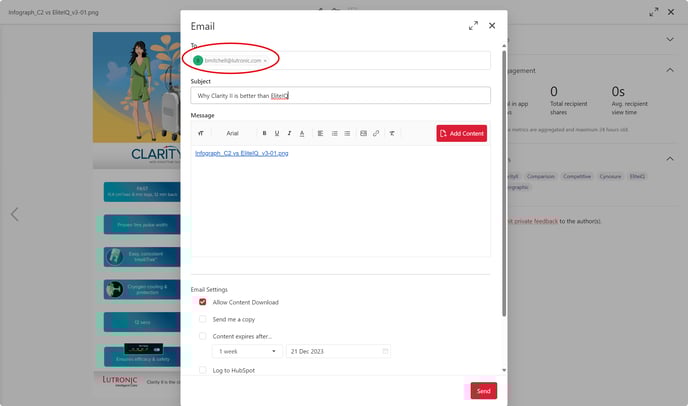
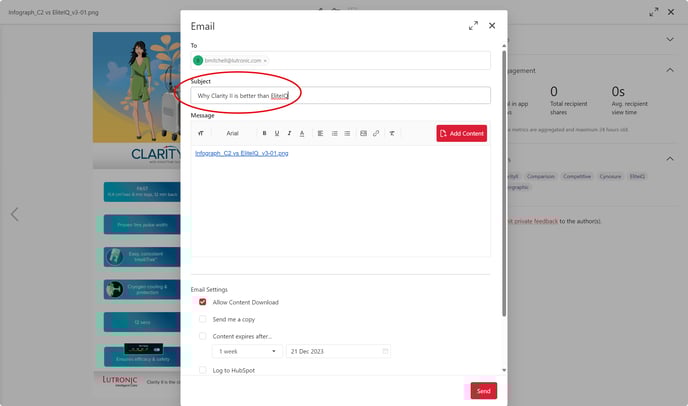
Enter in subject.
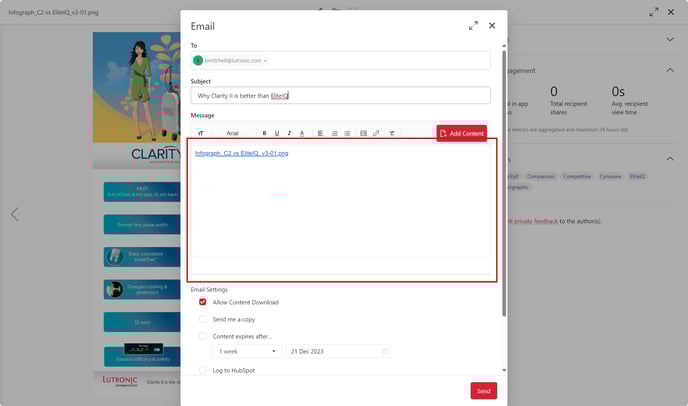
Add text as needed.
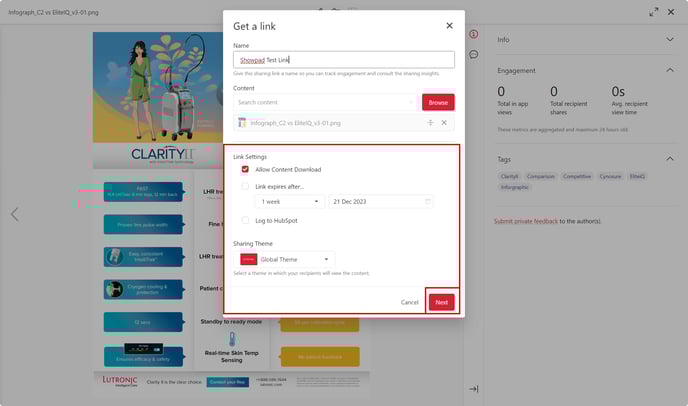
If you want to allow the receiver to download the content, click Allow Content Download.
You can also force the link expire after a specified time.
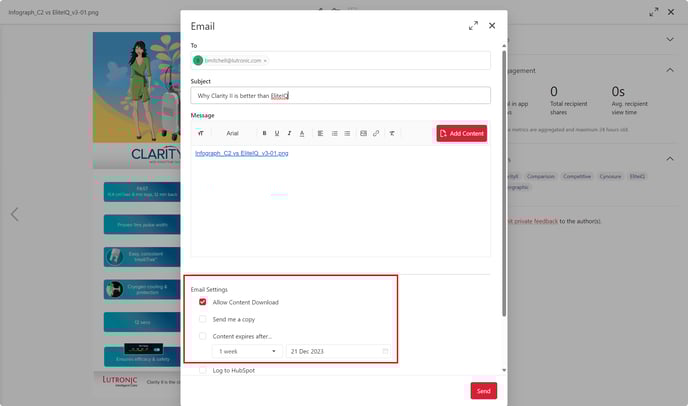
You can track changes to Hubspot by clicking Log to Hubspot.
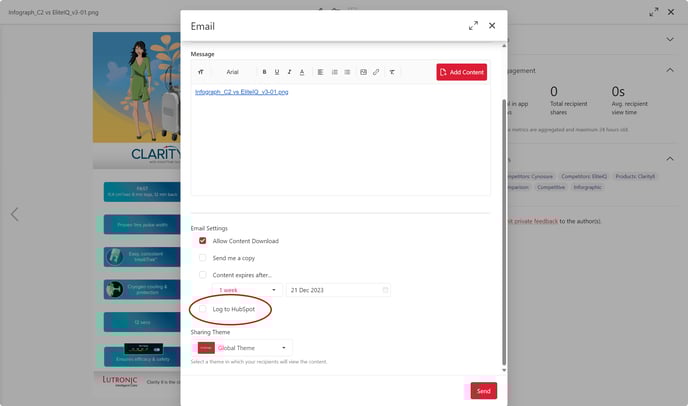
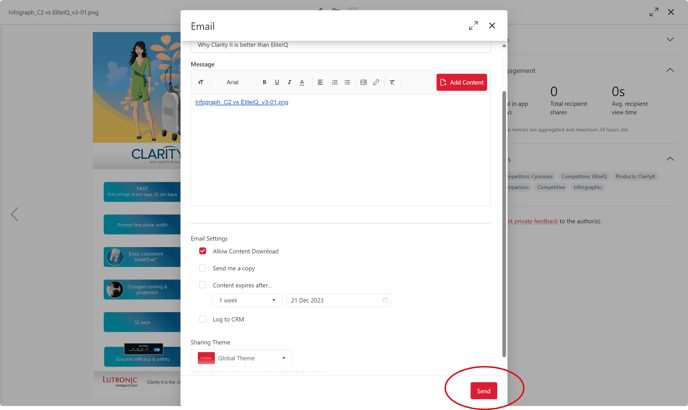
Once you have configured your settings in the way you like to, press send.
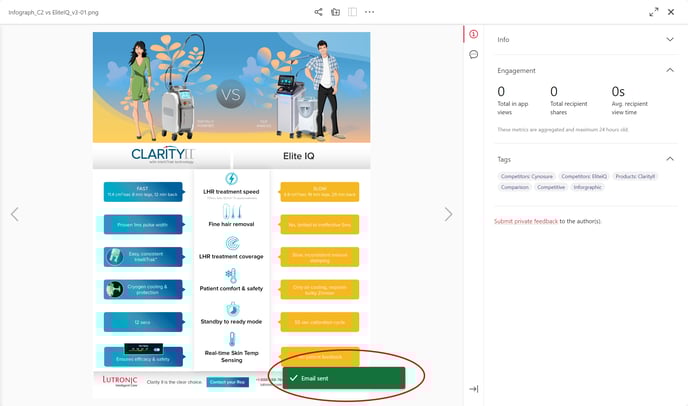
You will see a green confirmation box at the bottom that says Email Sent. If someone opens your email and views the file, you will receive an email in Outlook saying so.
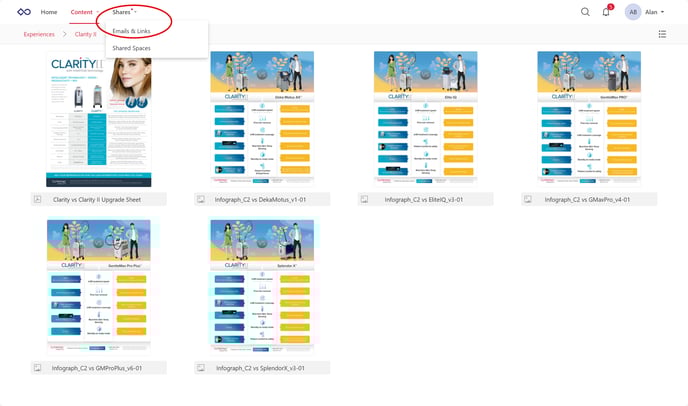
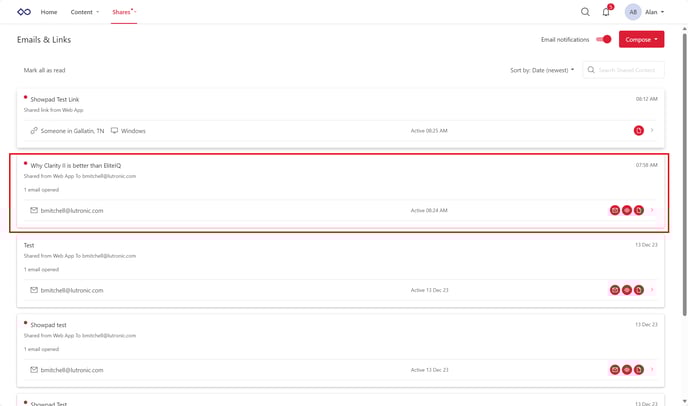
In order to track the email through Showpad, go back or go to the home page. Hover over the Shares tab and click on Email & Links.
Click on the specific email that you sent out.
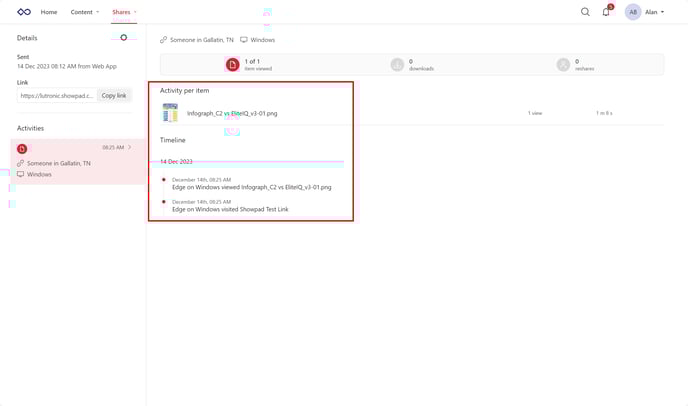
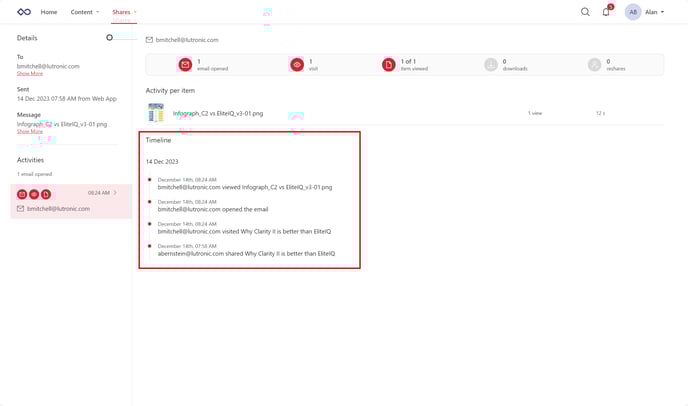
On this page, you can see a timeline of activity of the email you sent out.
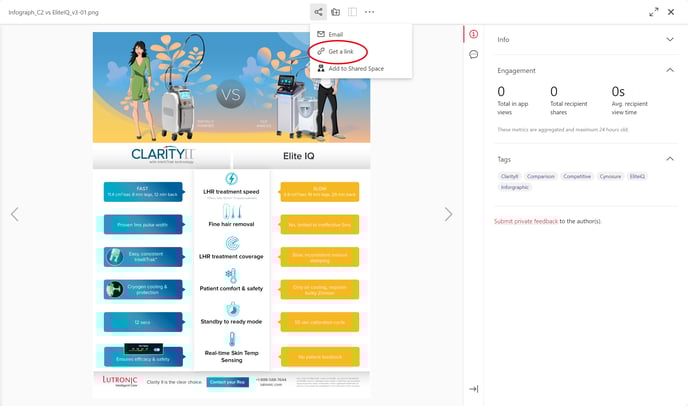
Similarly, you can share materials by creating a link instead of sending out an email.
Create the name of the link in the box that says Name.
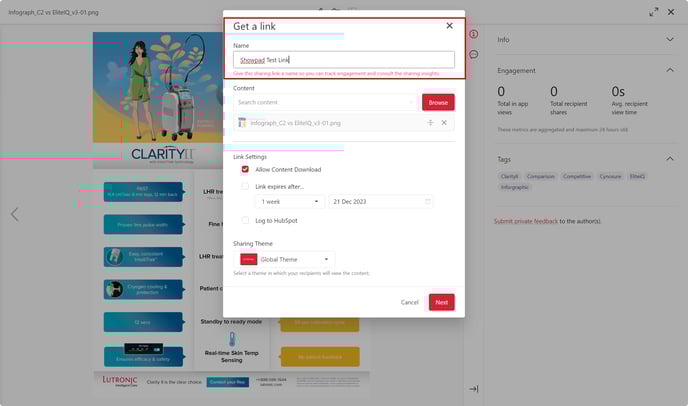
Fill out your link settings and then click next.
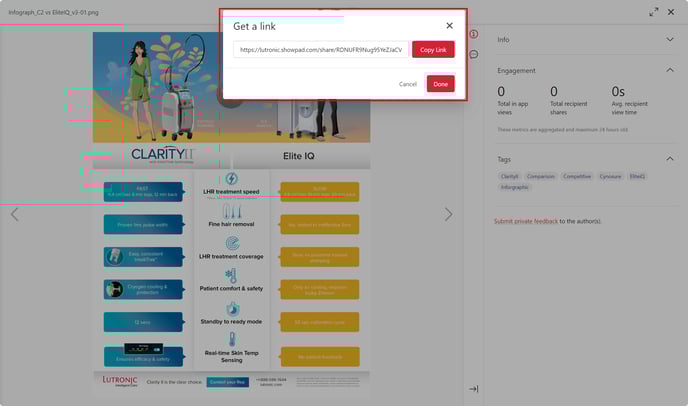
Copy the link and send it out.
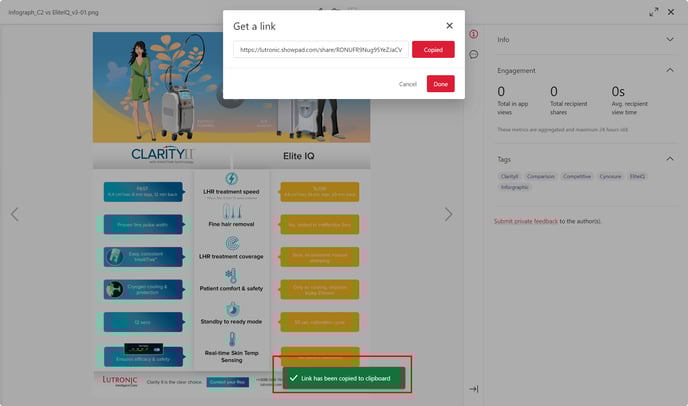
You will receive a green text box confirmation near the bottom of the page that says Link has been copied to clipboard.
In order to track the link through Showpad, go back or go to the home page. Under the Shares tab, click on Email & Links.
Click on the link you sent out.
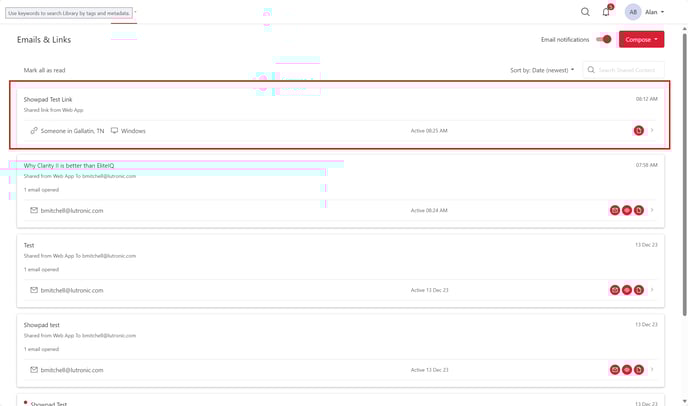
You will be able to see the history of who viewed the link. Email will be more specific for tracking than links.