![lutronic-red-tab-white.png]](https://support.lutronic.com/hs-fs/hubfs/Branding/lutronic-red-tab-white.png?height=50&name=lutronic-red-tab-white.png)
Log in at https://lutronic.showpad.biz/login
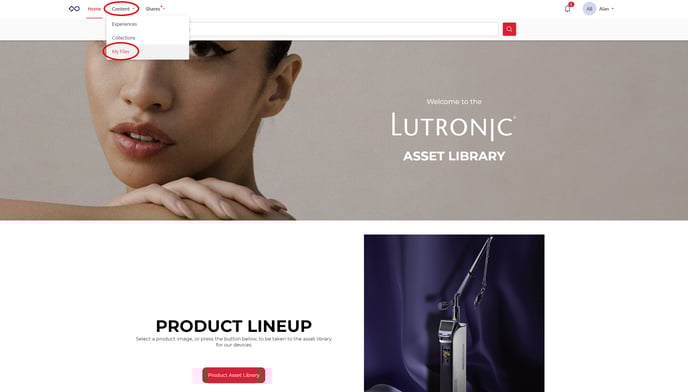
Hover over Content tab and click on My Files.
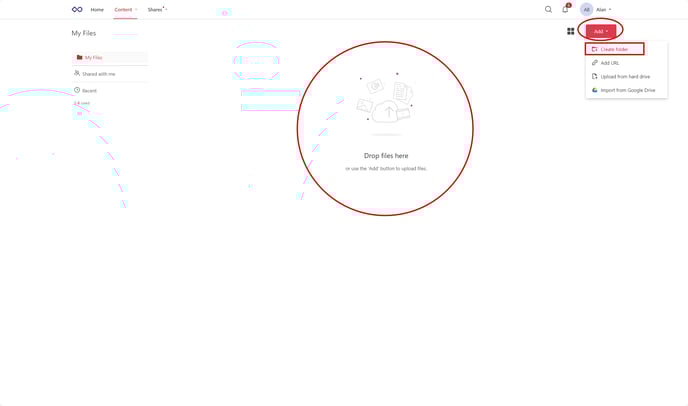
Click on Add and then click on Create Folder to make specific folders to upload your own materials to. You can also drop in files directly from your device folders.
 Make a name for your folder, then click Create Folder.
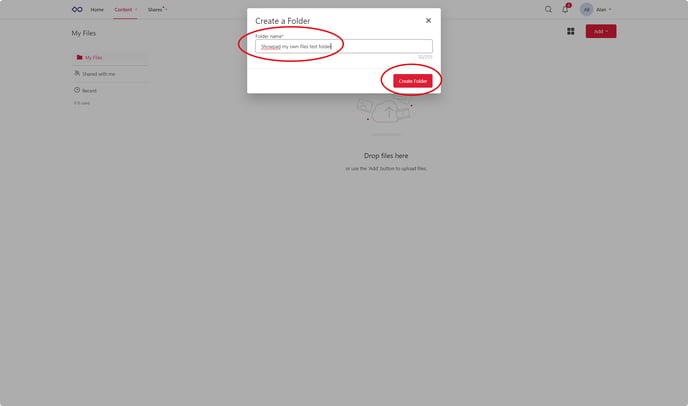
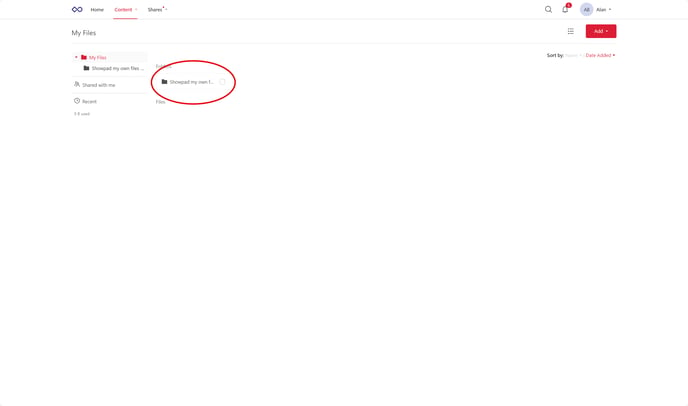
You will now see your newly created folder in the folder section.
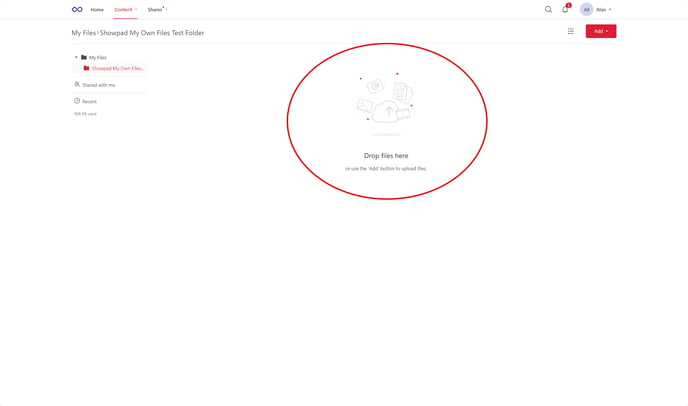
If you click into your folder, you will be taken to your folder page where you can simply drop in your own files from your device.
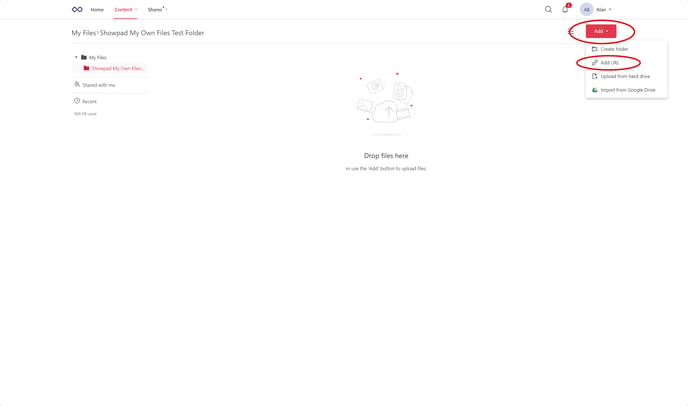
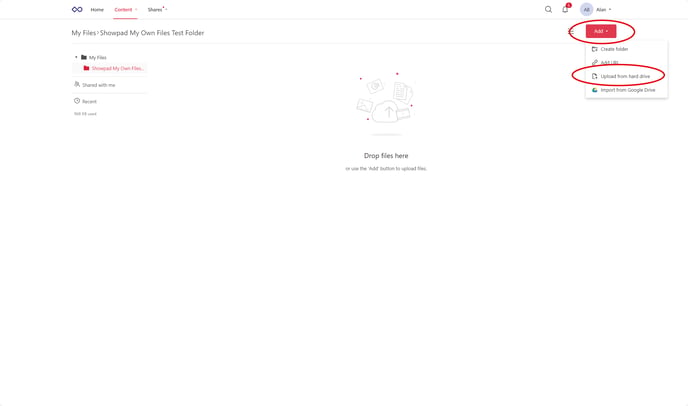
You can also click the Add button in the upper-right hand corner to add subfolders, a URL (website link), upload files from your hard drive, or upload files from google drive.
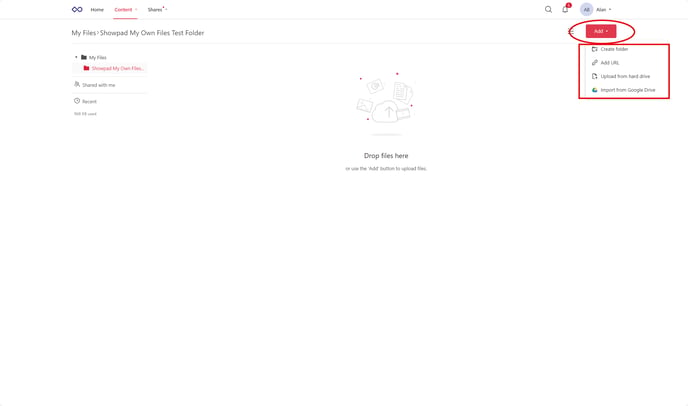
To add a URL (website link) to your folder, click on Add URL.
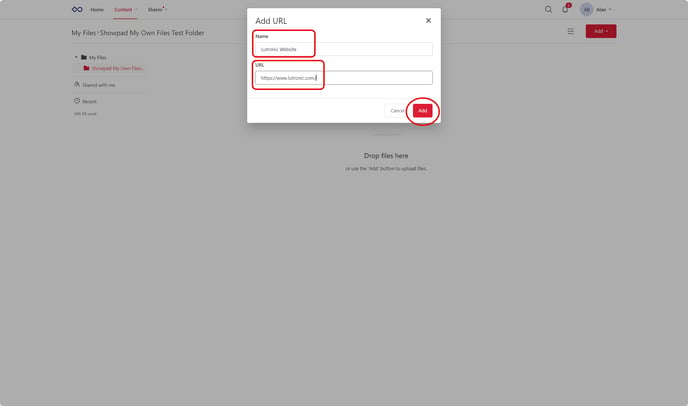
Add in a name for your URL (website link) in the Name tab and add the link to your URL in the URL tab. Then click Add.
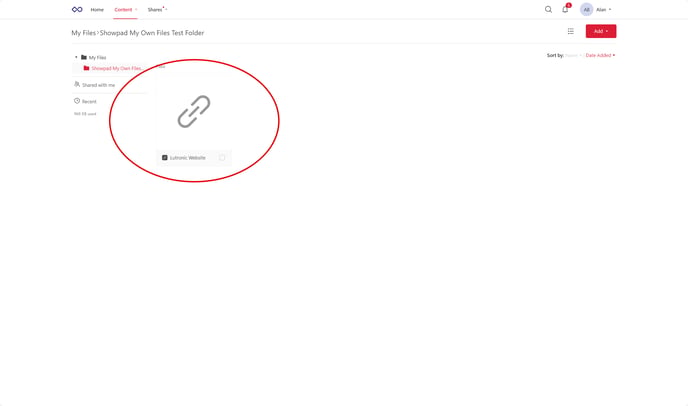
You will now see the URL (website link) you added as a file.
To upload from the files from your own device, click on Upload from hard drive.
Your folders will pop up.
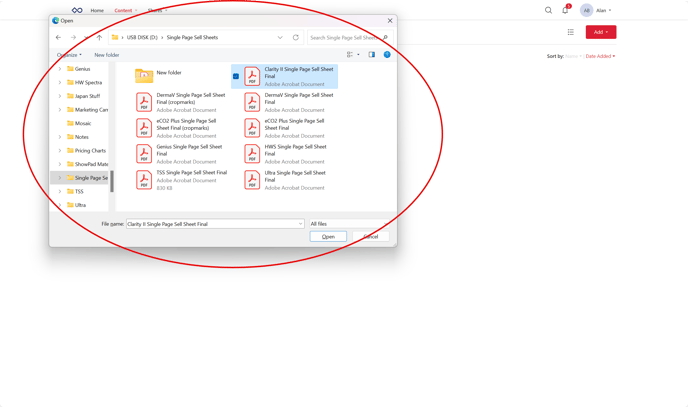
Navigate to the folder with the materials you want to add in, and then add them in by double clicking, or clicking once and then hitting enter, or by clicking once and then clicking the Open button.
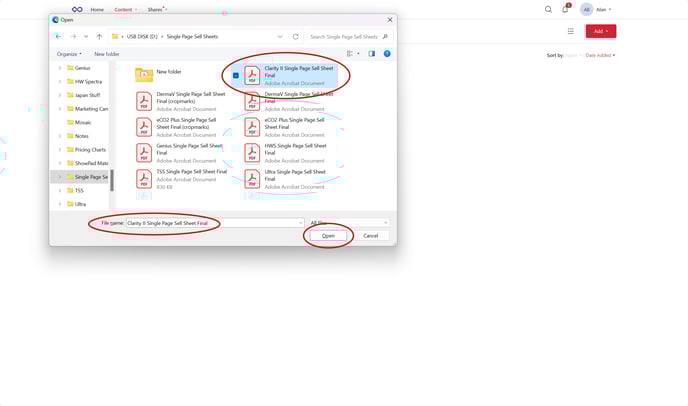
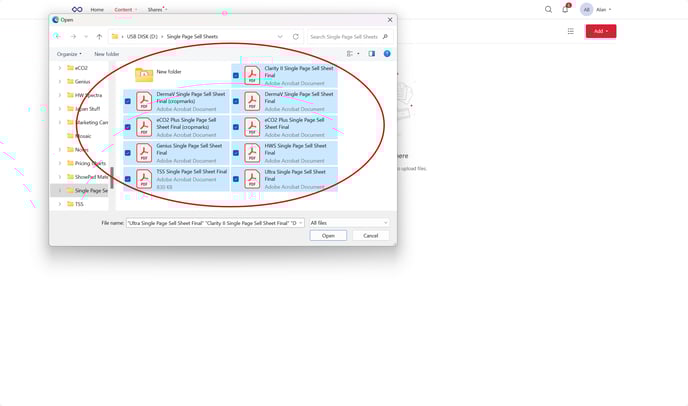
You can add in multiple files at a time, if you wish to do so.
You will now see your newly added file in your folder.
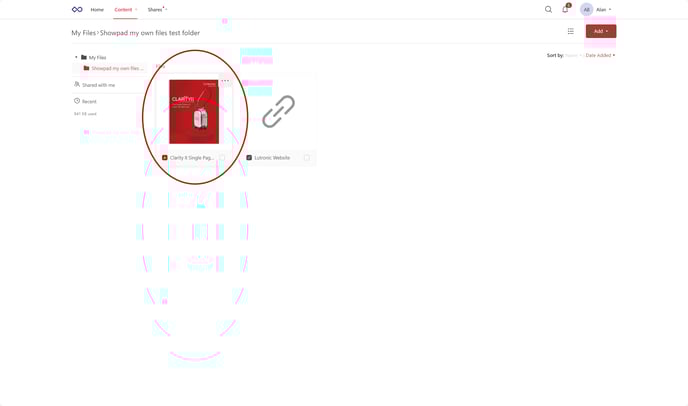
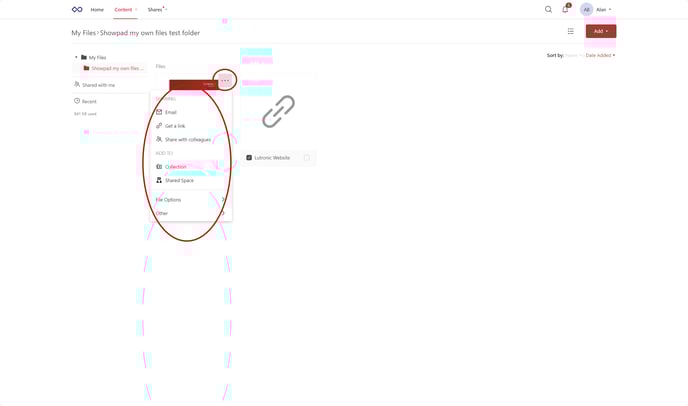
You can now click on the tab with the three dots on the upper right-hand corner of the file, where you will see several options. You can email it out, send it out with a link, share with colleagues, add it to a collection, or add it to a shared space.