![lutronic-red-tab-white.png]](https://support.lutronic.com/hs-fs/hubfs/Branding/lutronic-red-tab-white.png?height=50&name=lutronic-red-tab-white.png)
Log in at https://lutronic.showpad.biz/login
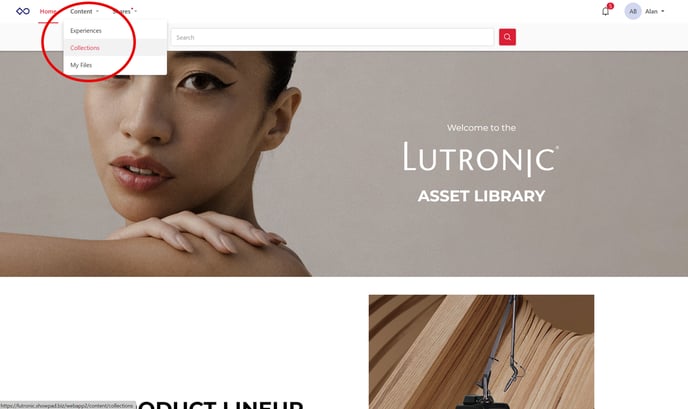
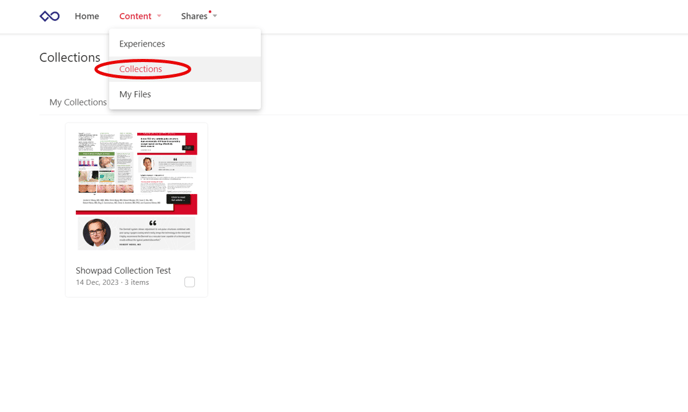
Hover over Content tab and click on Collections.
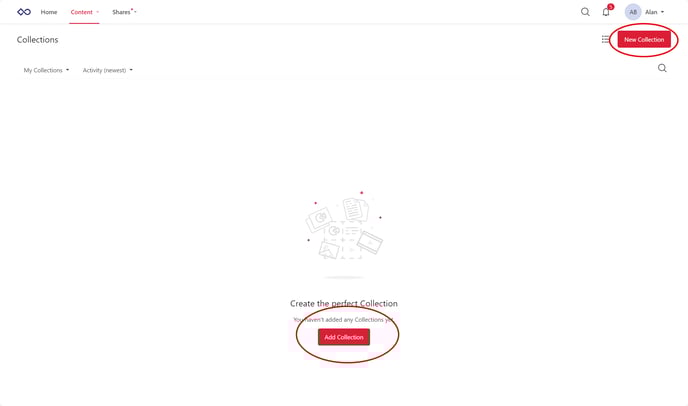
Click on Add Collection or New Collection.
Name your collection and then click Create Collection.
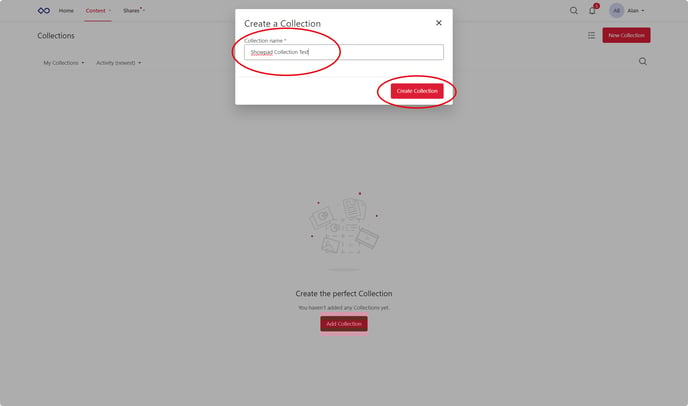
You can directly add your own files to your own collection here.
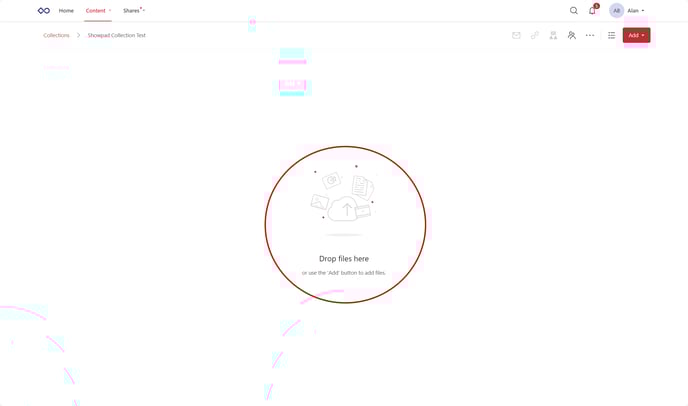
Click on the Add tab to see your options.
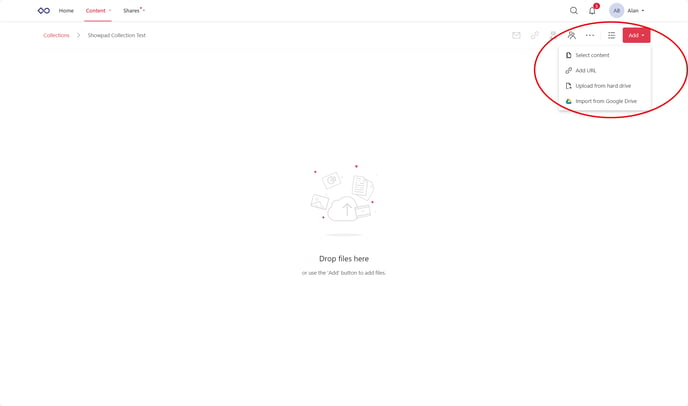
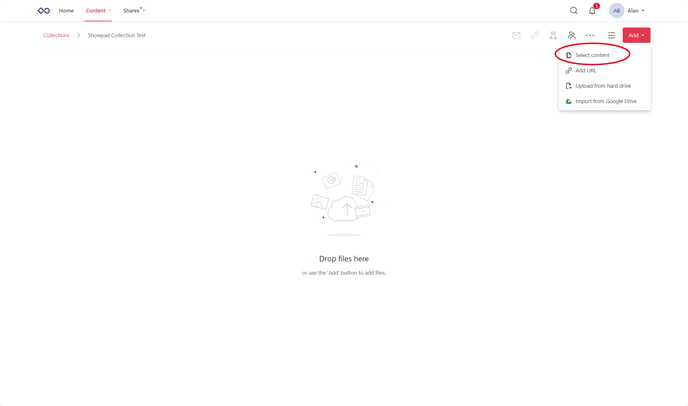
Click on Select content to create a collection of files from Showpad. You also have the options to upload files from a hard drive or google drive or add a URL (website link).
*See Uploading Your Own Files Walkthrough for further information*
To go through the materials on Showpad, click the Experiences tab and click on a specific product.
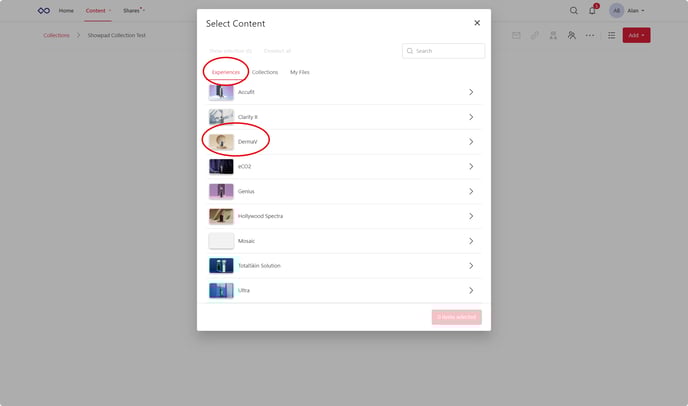
Click on a specific folder.
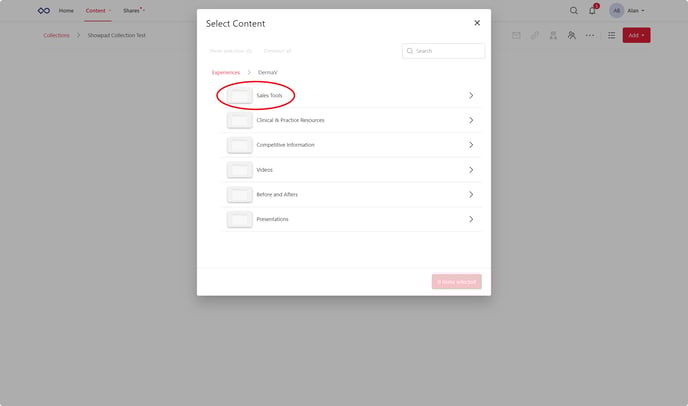
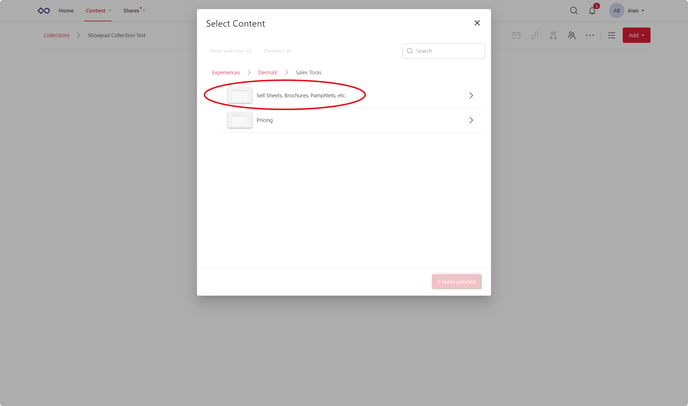
Continue going down the path of folders until you get to the material/s you desire for your collection.
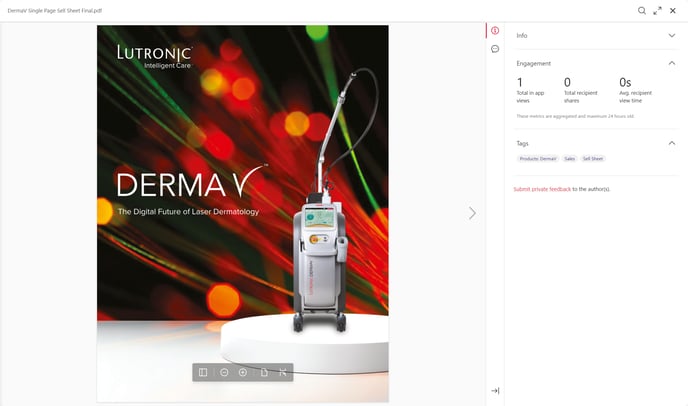
Once on the page with materials, you can click Preview to view a preview of the material you selected.
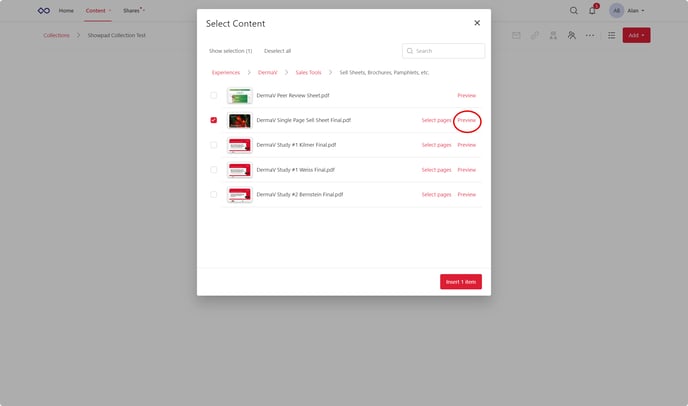
Preview page.
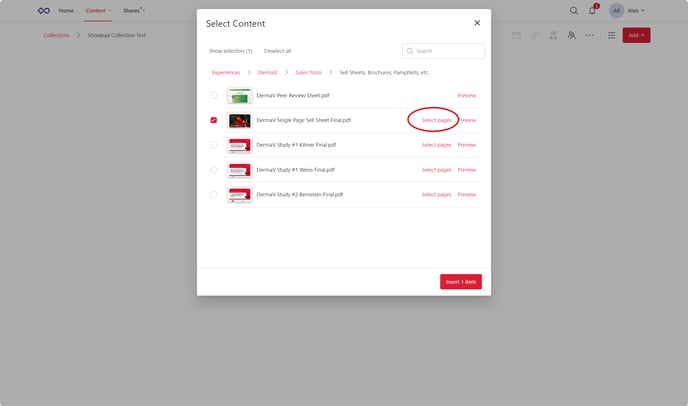
You can hit the Select pages button to choose which pages to add to your collection.
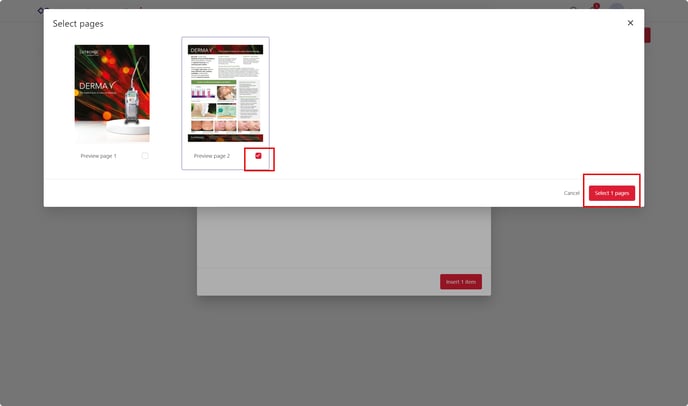
Check the boxes for the pages you want to keep and then hit the Select x pages button in the bottom-right corner. This will be especially useful for creating your own custom presentations.
On the right hand side of the material, you will see how many pages were selected.
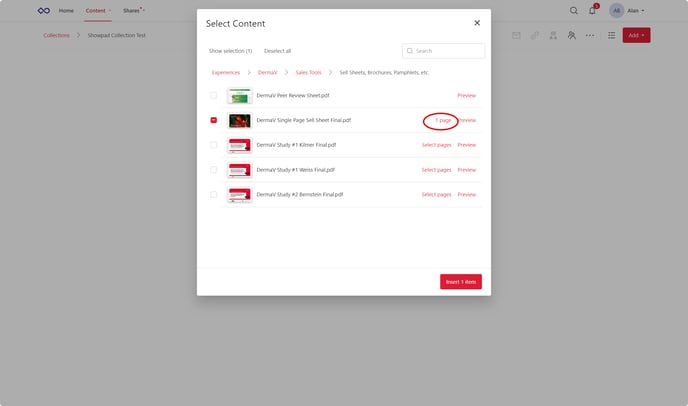
After selecting your desired pages, click the checkbox on the left side of the materials that you want for your collection, and then click Insert x items.
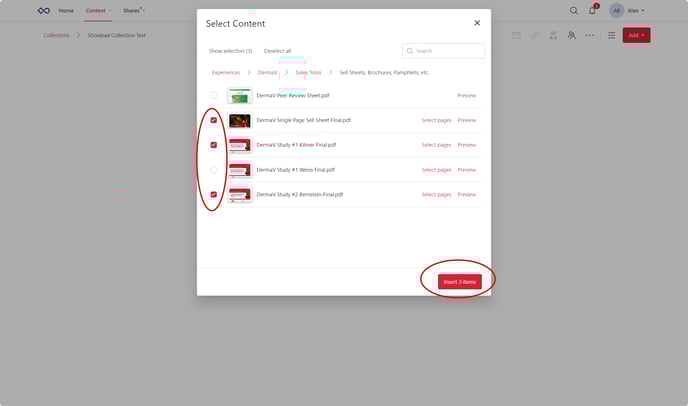
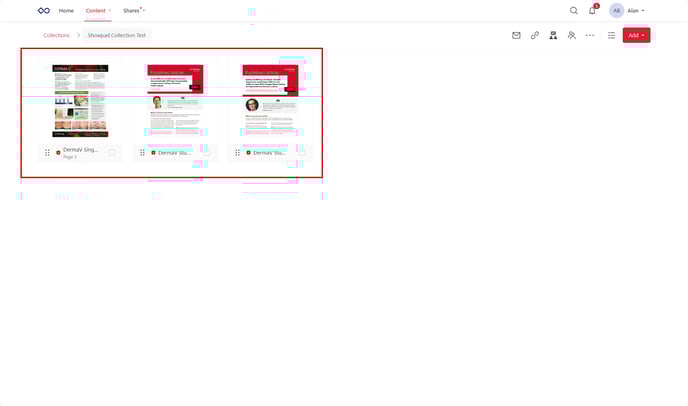
You will now have your desired materials in your collection. You can make several collections that consist of different materials that you choose.
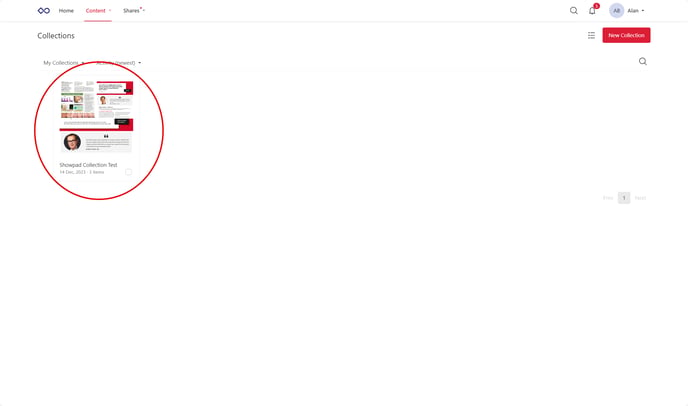
Now, when you go under the Content tab and click Collections, you will find your custom-made collections of materials.
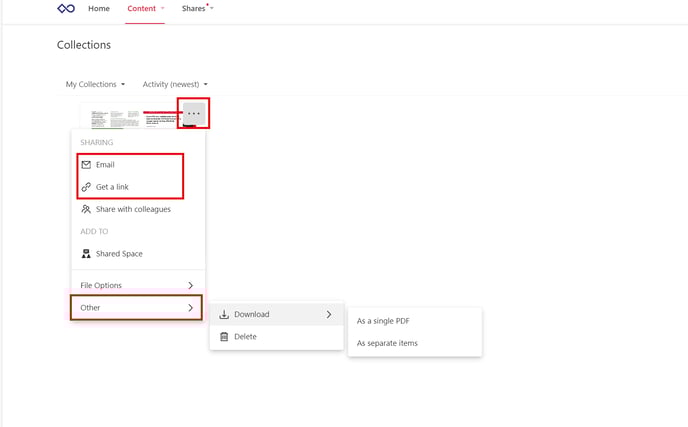
You can now click the tab with 3 dots in the upper right hand of the collection to send out or download the entire collection. You can also have the option to send out the entire collection as a single PDF or as separate items.
If you click on the collection itself, it will bring you to your individual files within the collection.
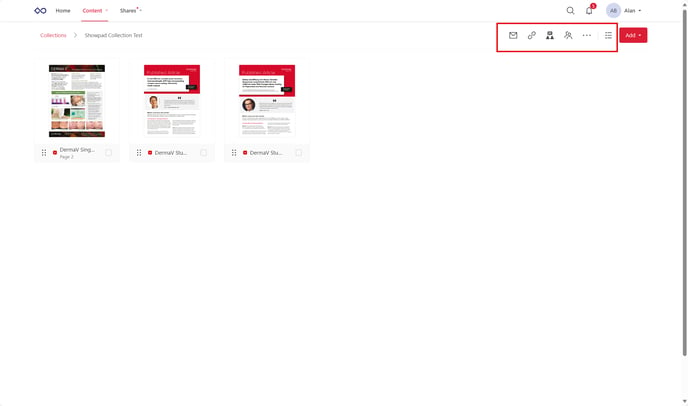
By using the tabs in the upper-right hand corner, you will also have the option to send out or link all files within the collection page itself.
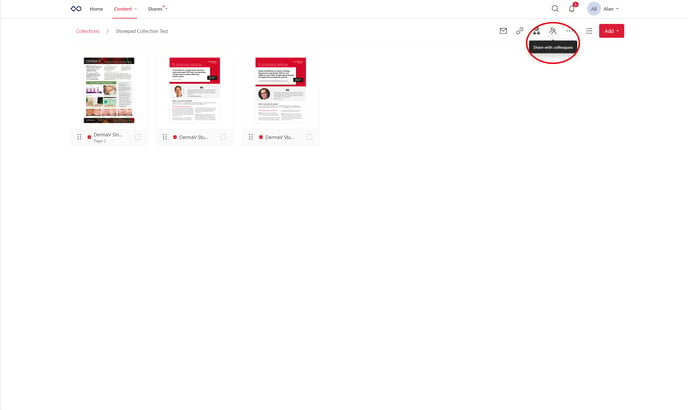
You can also go to the tab at the top and click on Share with Colleagues to share with other Lutronic Showpad users.
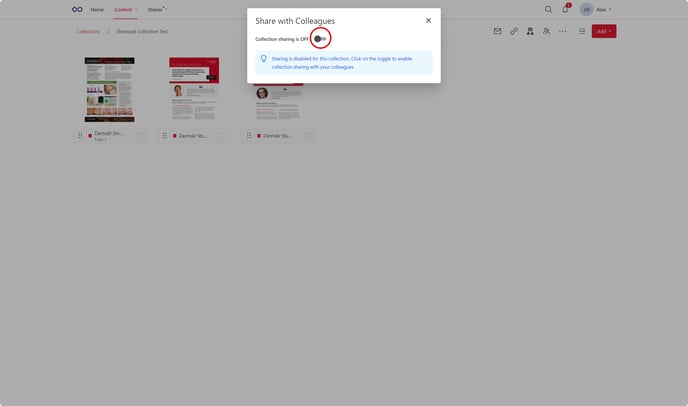
Click Collection Sharing from OFF to ON for your specific collection that you want to share.
Click continue.
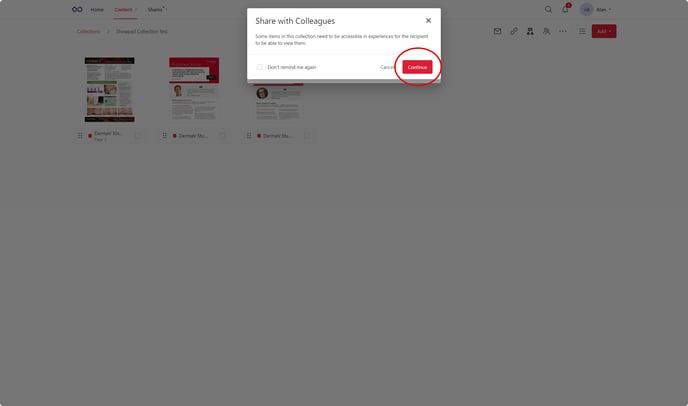
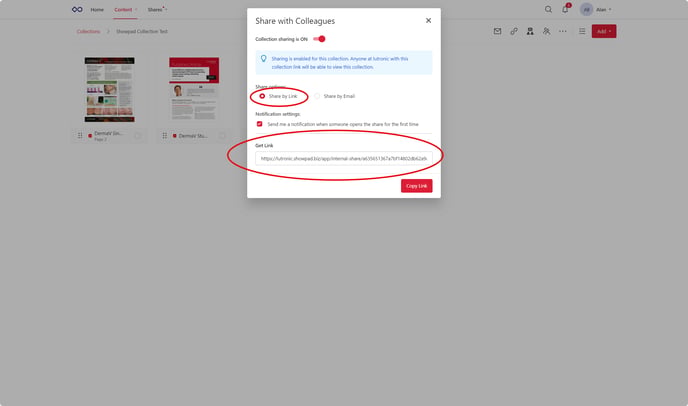
You can share by link.
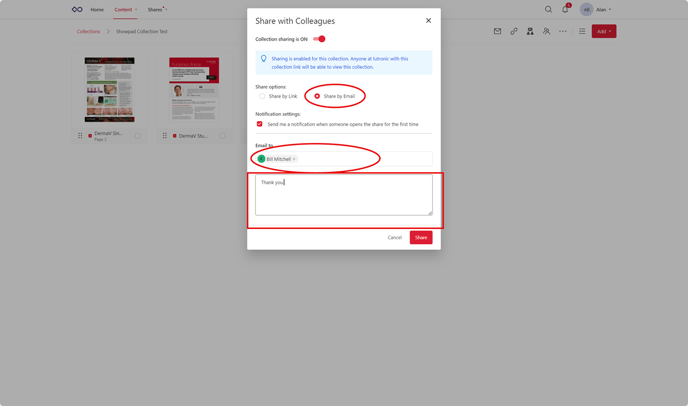
You can also share by email. Add in the email address or addresses of the colleagues you would like to share your collection with. Add a note if you want to.
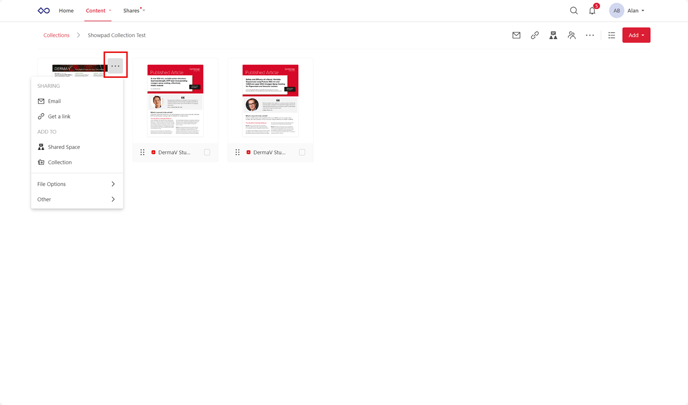
You can also choose to send out files individually by clicking on the three dots above each individual file, instead of sending out the entire collection at once.
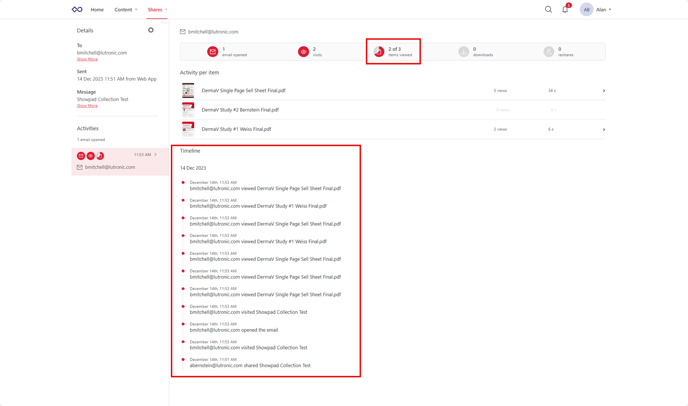
To check the history of activity, go to the Shares tab and click on Email & Links.
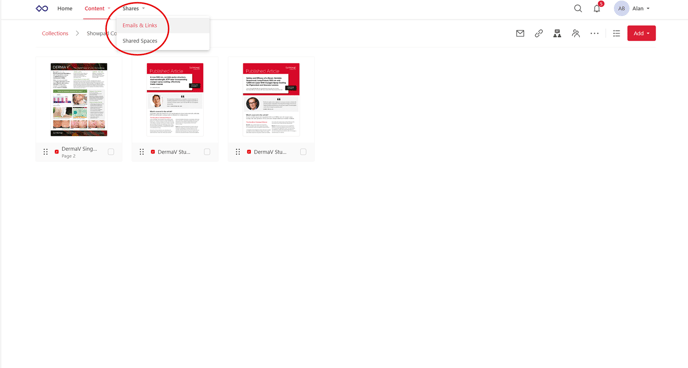
Click on the specific email or link history that you wish to see the activity of.
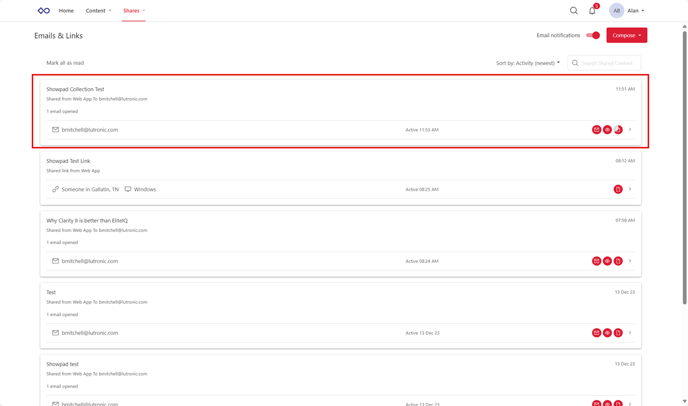
Here you can see the activity history of your specific collection. You can also see which items in the collection have been viewed.