![lutronic-red-tab-white.png]](https://support.lutronic.com/hs-fs/hubfs/Branding/lutronic-red-tab-white.png?height=50&name=lutronic-red-tab-white.png)
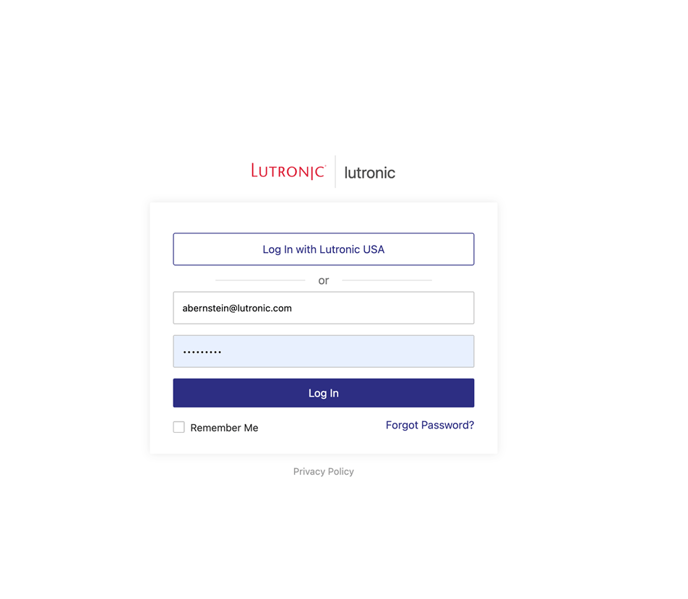
Log in at https://lutronic.showpad.biz/login
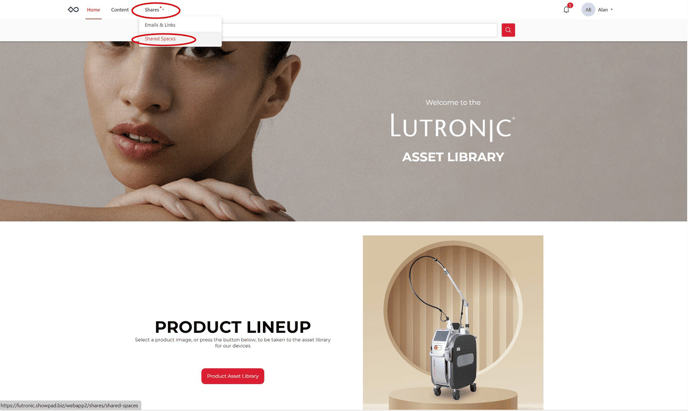
Go to the home page and hover over the Shares tab. Click Shared Spaces.
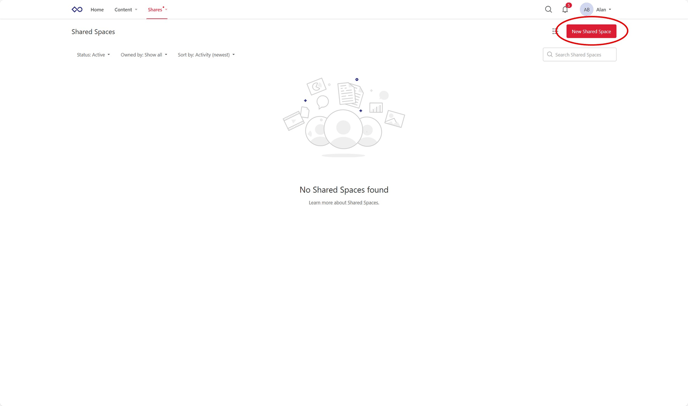
You will be taken to the Shared Space area. Click on New Shared Space.
Add a name for your Shared Space. You can customize your Shared Space URL.
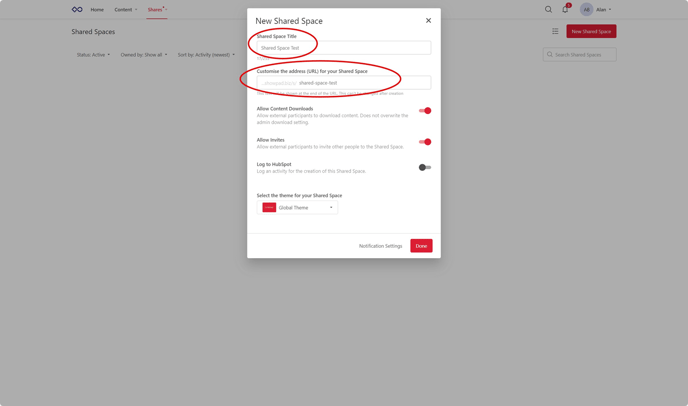
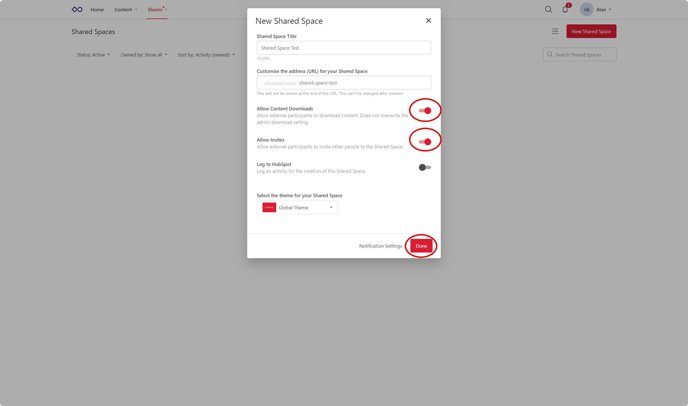
Choose your settings and then click Done to finish creating your Shared Space.
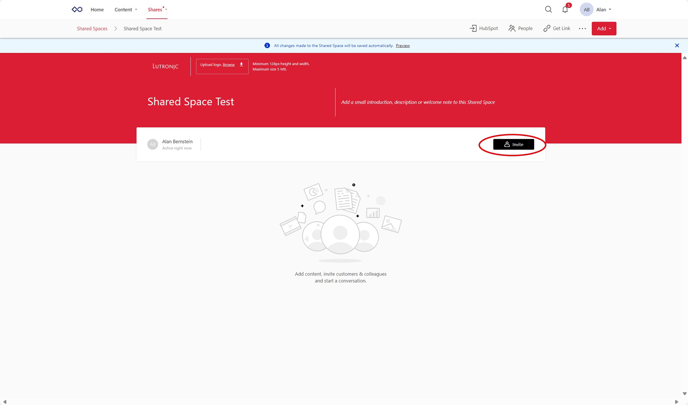
Once created, click the Invite button to invite other members to your Shared Space.
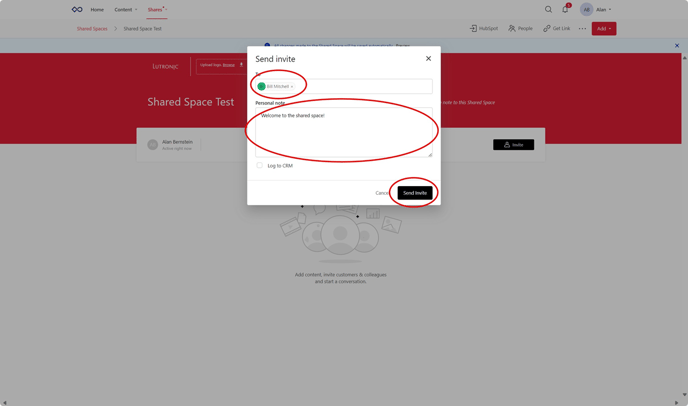
Add in the email addresses of the people you want to invite, add a note if you would like to, then click Send Invite.
You should receive a notification that the invites were sent successfully.
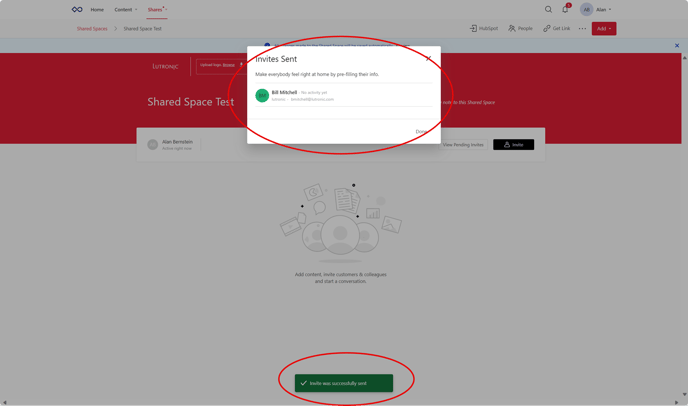
By clicking on View Pending Invites, you can see who you have invited to your Shared Space.
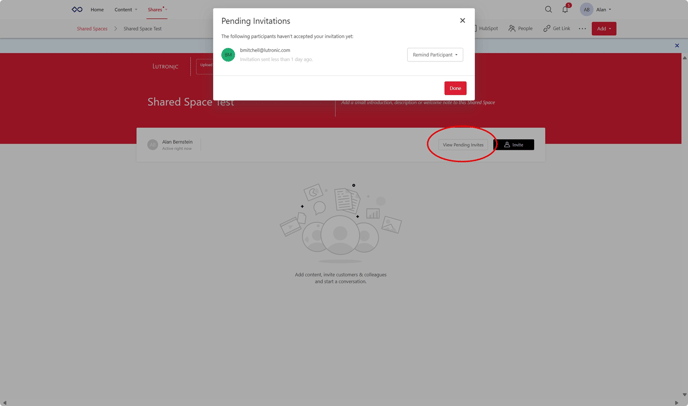
From within Showpad, you can send out email reminders about your invitations to the Shared Space.
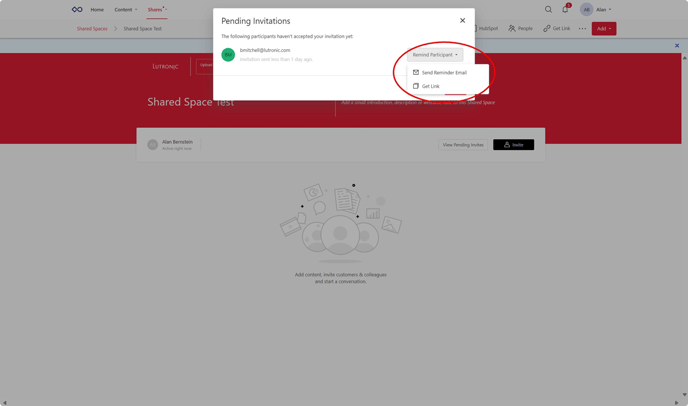
Hit the button with three dots at the top-right corner to see several options. Click Activities to see the history of your Shared Space.
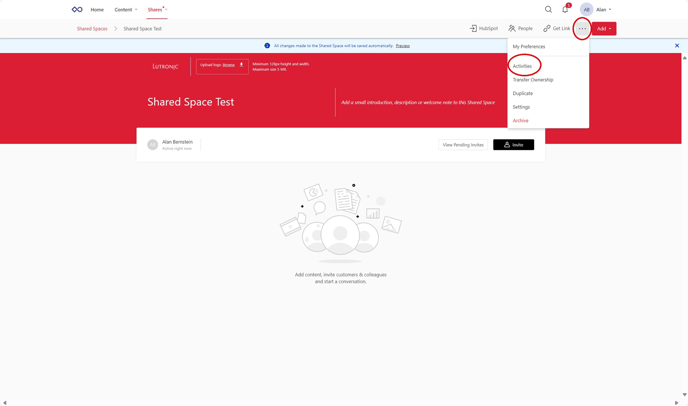
You can hit the Transfer Ownership button to give somebody else control of the Shared Space.
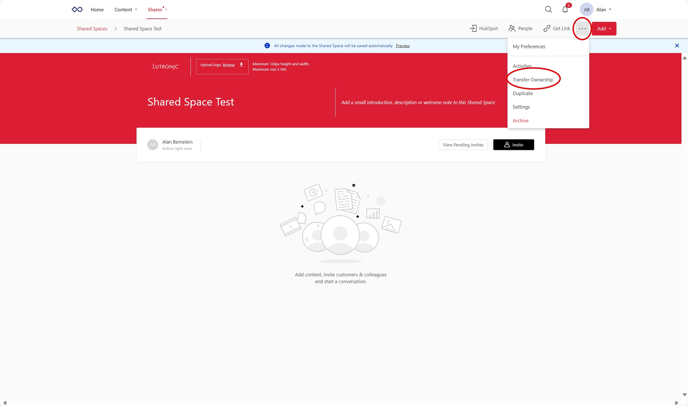
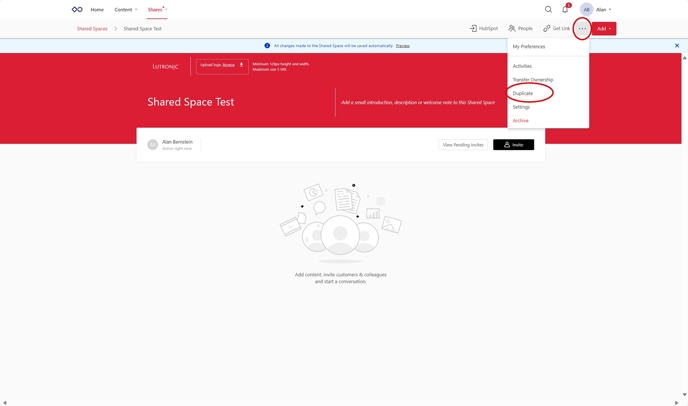
By clicking the duplicate button, you can make an exact copy of the Shared Space.
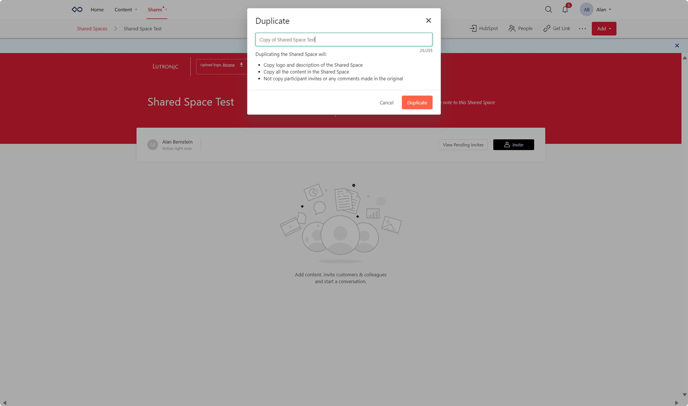
You can customize the name of your duplicate Shared Space.
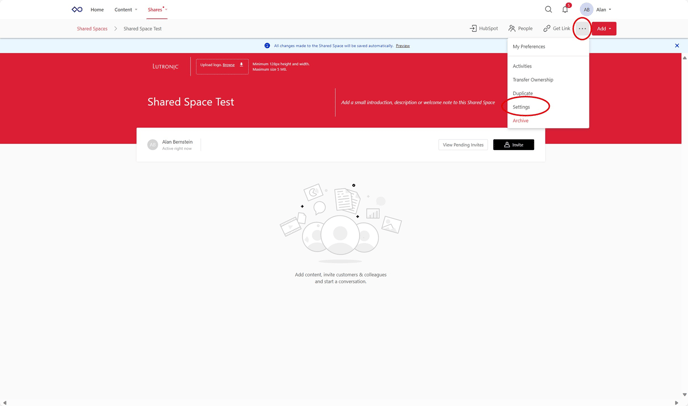
You can hit the Settings button to customize the settings of your Shared Space.
You can allow others to download the content in your Shared Space. You can allow other members to invite people to your Shared Space.
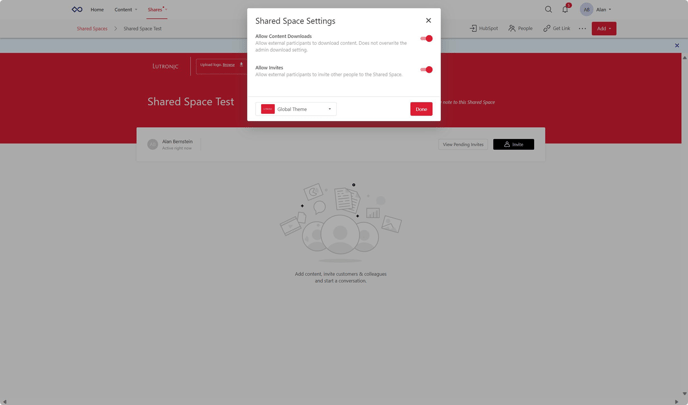
Hit the Add button in the top right corner to add materials to your Shared Space.
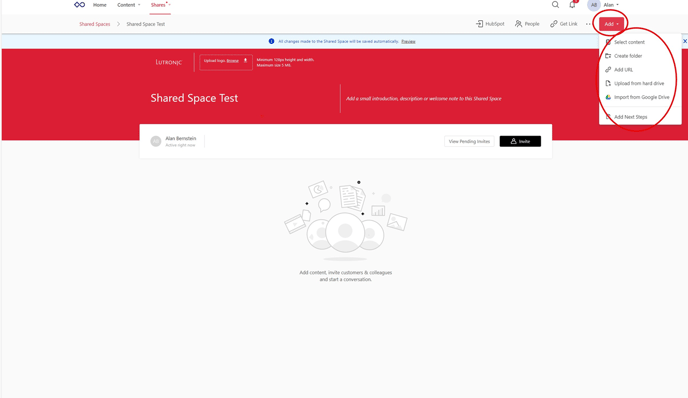
By hitting Select Content, you can add materials directly from Showpad into your Shared Space.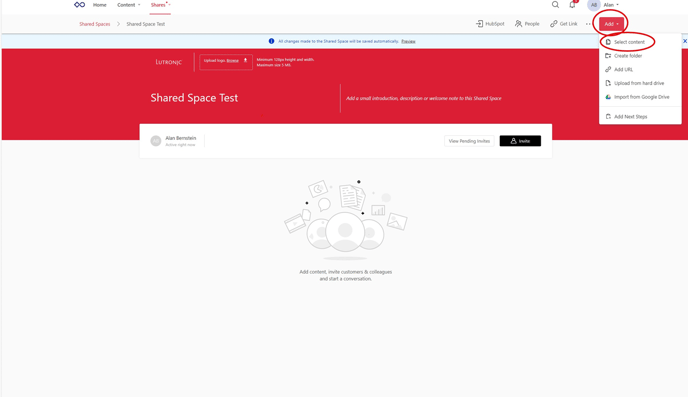
You will be taken to the Experiences tab. (You can also choose to add materials from your Collections or Files).
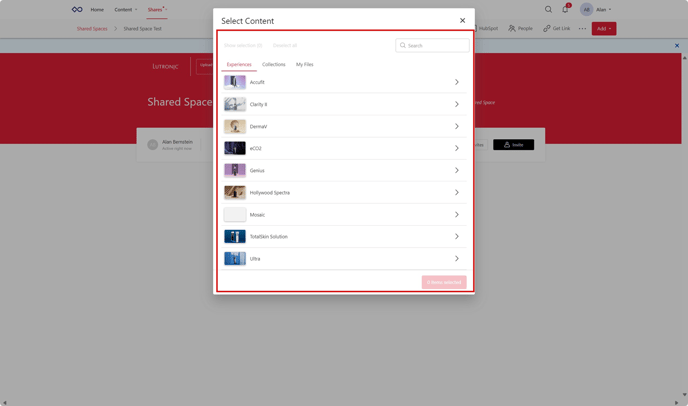
Click on a specific product.
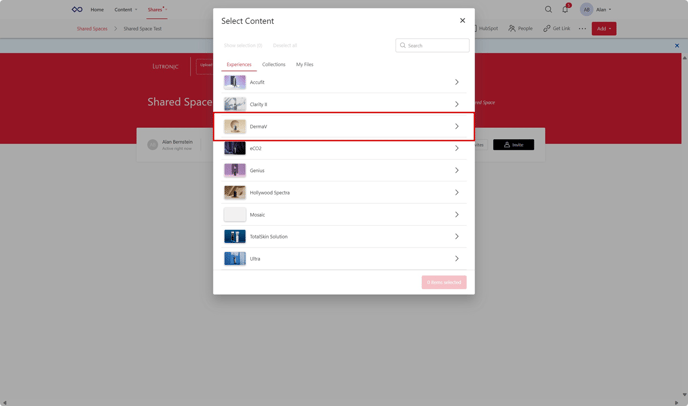
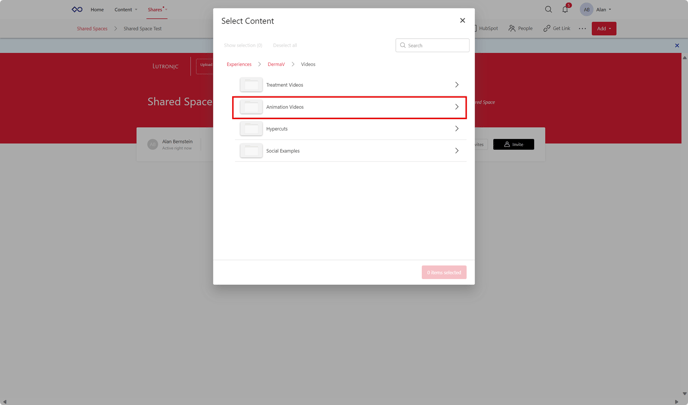
Navigate through the folders to get to the materials you want.
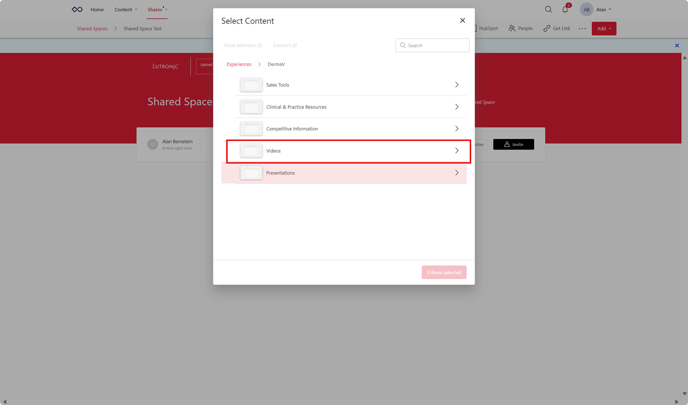
Continue navigation.
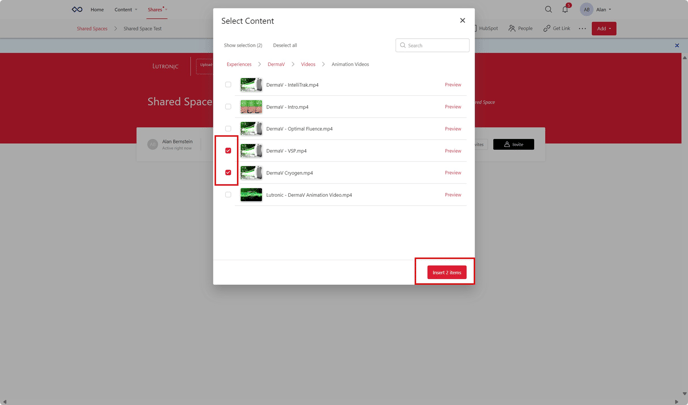
Click the check boxes on the left side of the materials you want to add to your Share Space, then click the Insert x Items button.
You will now see the materials you added in your Shared Space.
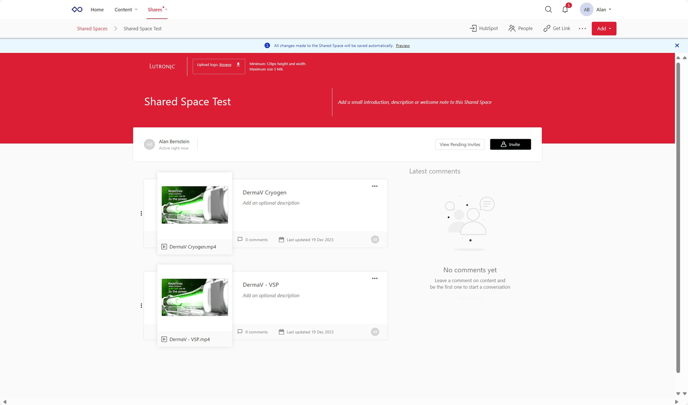
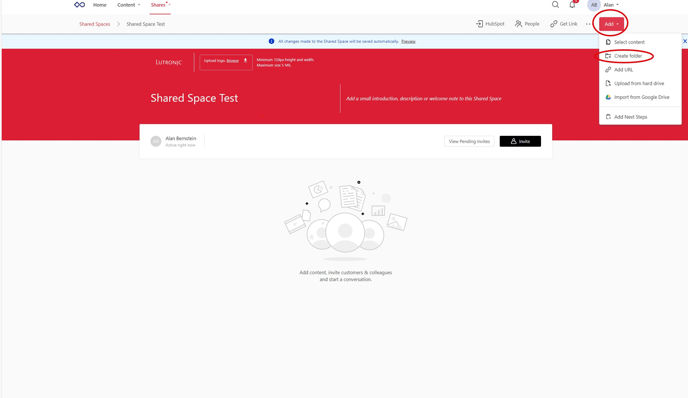
You have the option to add folders to organize materials in your Shared Space. Click Add, then click Create Folder.
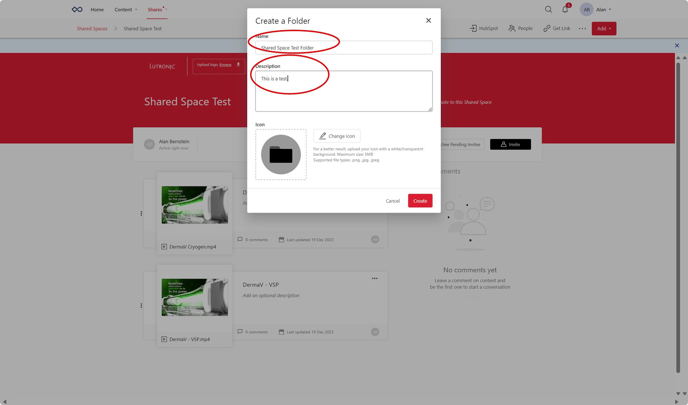
Name your folder and add a description.
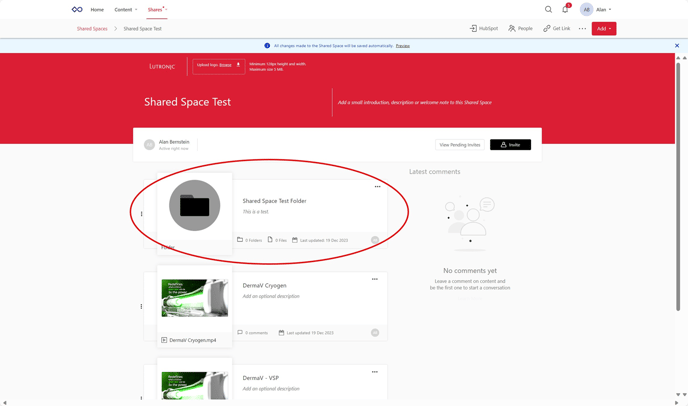
You will now see your custom folder in your Shared Space. Double click on your folder to take a look inside.
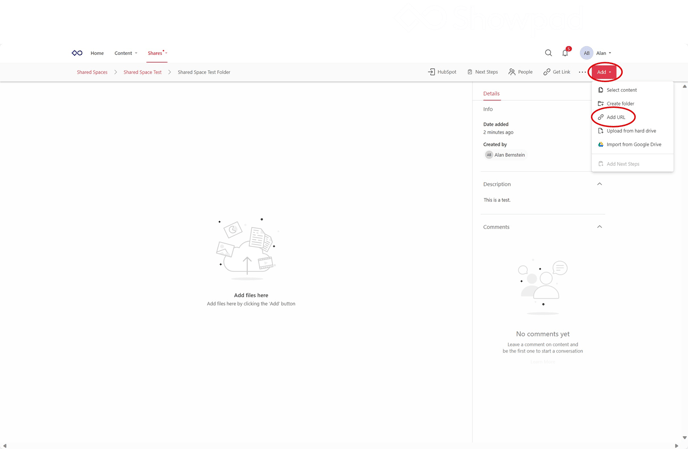
You can also add URL (website link) to your Shared Space. Click Add and then click Add URL.
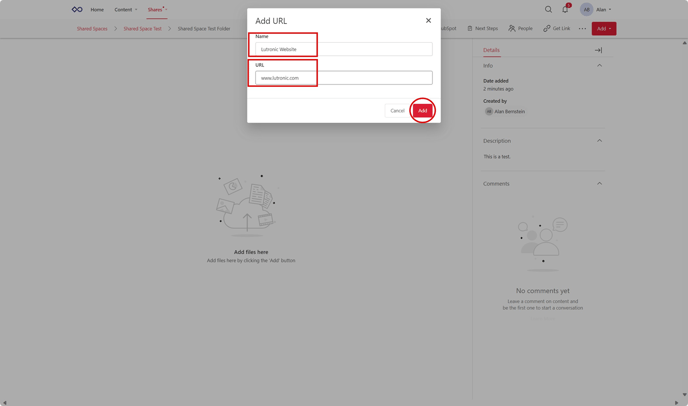
Add a name for your Shared Space and enter the website URL, then click Add.
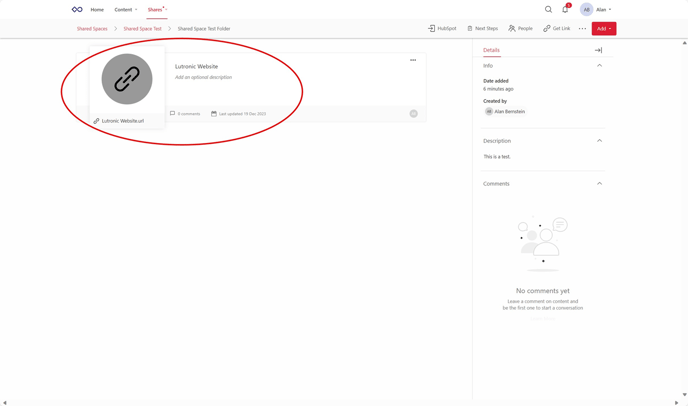
You will now see your URL.
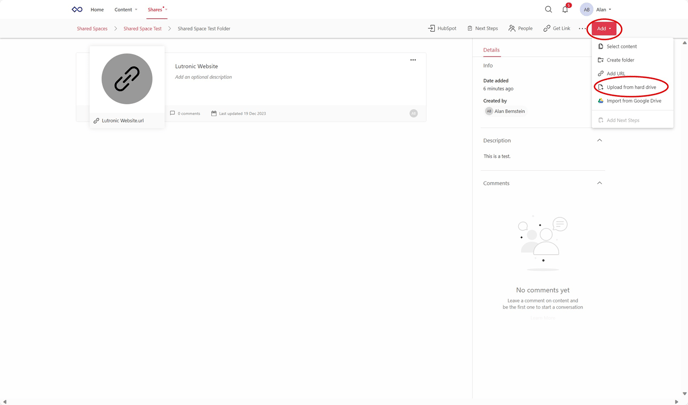
Click Add and click Upload from Hard Drive to upload files from your device.
Your folders will pop up. Click on the materials you want to upload and hit enter or click Open.
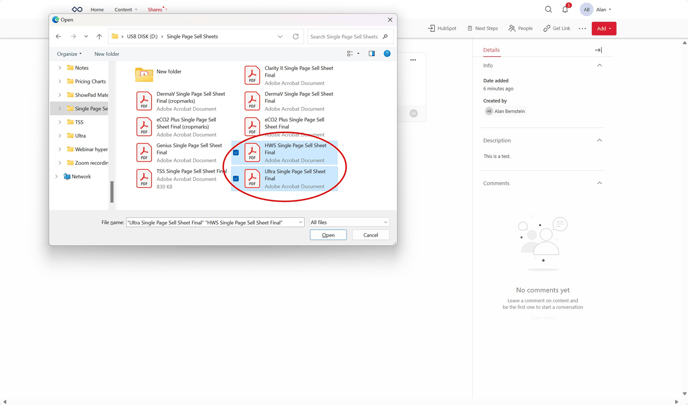
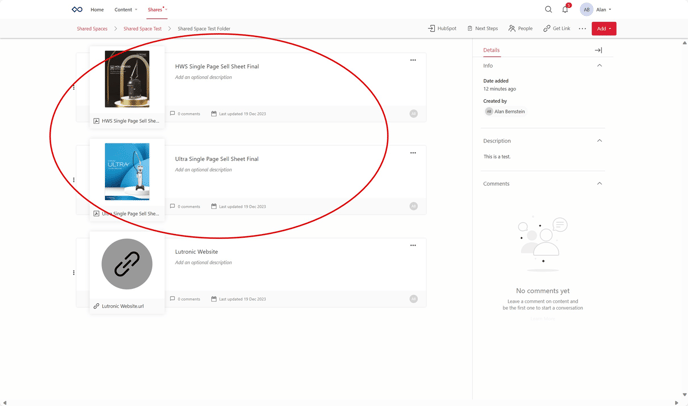
The materials you added will now be shown in your Shared Space.
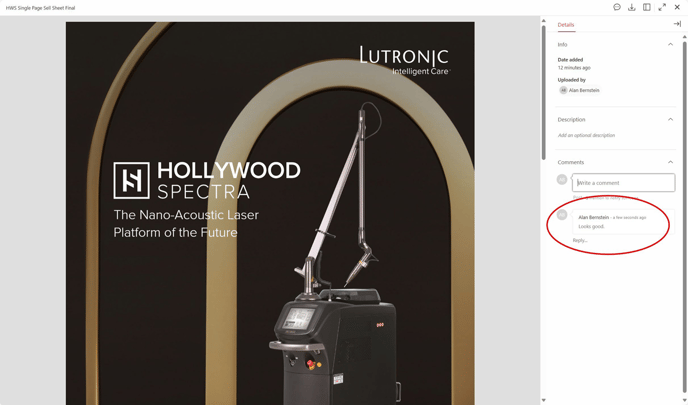
You and others in your Shared Space can make comments on your materials.
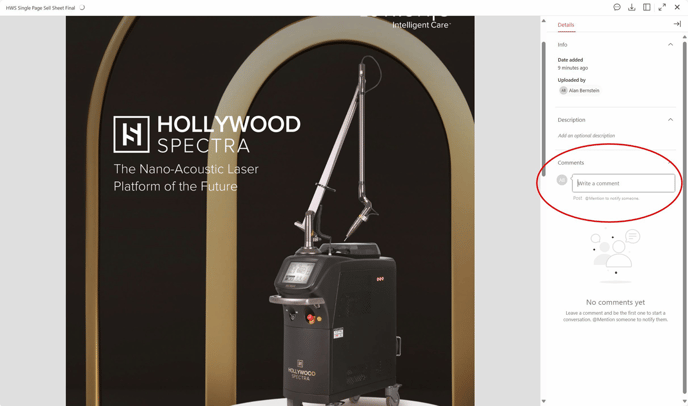
Type in your comment and then hit enter.
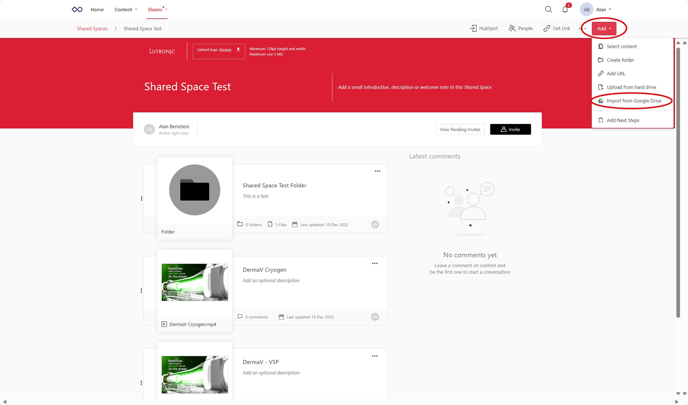
To upload files from your Google Drive, hit Add, then hit Import from Google Drive.