![lutronic-red-tab-white.png]](https://support.lutronic.com/hs-fs/hubfs/Branding/lutronic-red-tab-white.png?height=50&name=lutronic-red-tab-white.png)
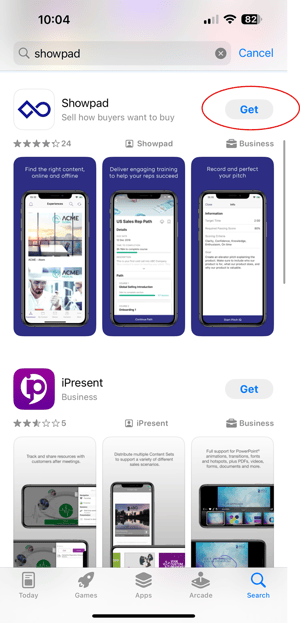
Download the Showpad app on your phone’s app store,
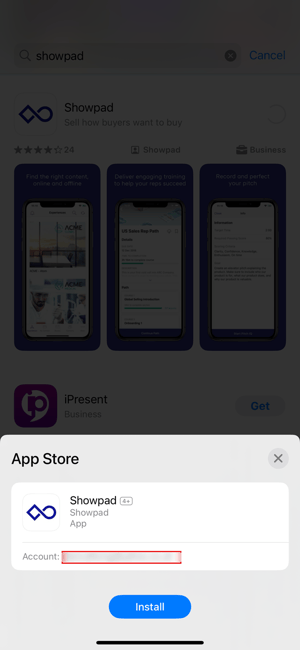
Put in your account email.
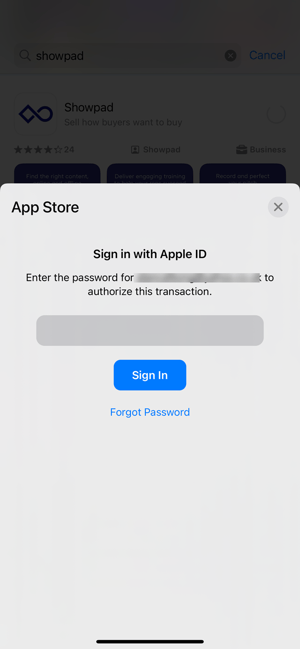
Put in your password.
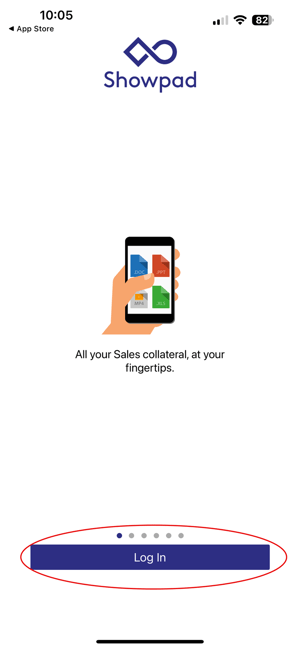
Once downloaded, open the app and click Log in.
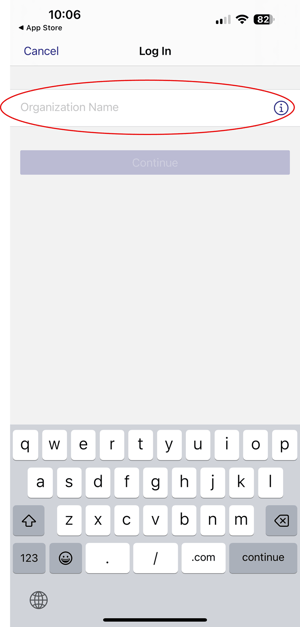
Click on Organization Name.
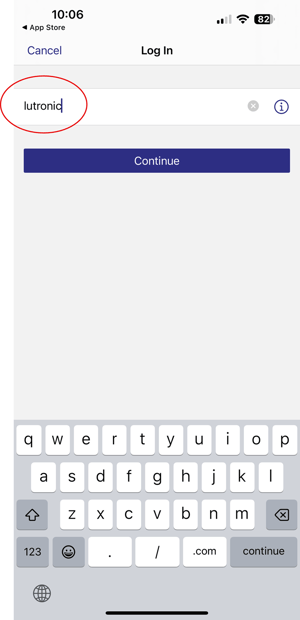
Type in Lutronic.
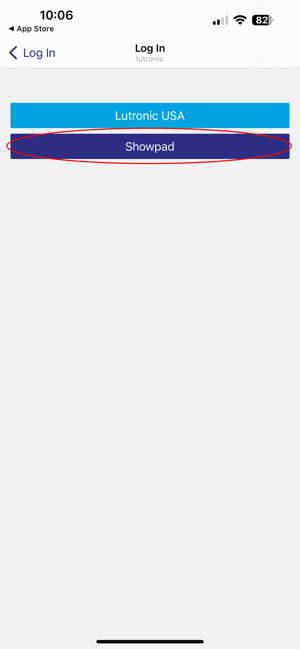
You will be redirected to this page. Click on Showpad.
Type in the email address connected to Showpad.
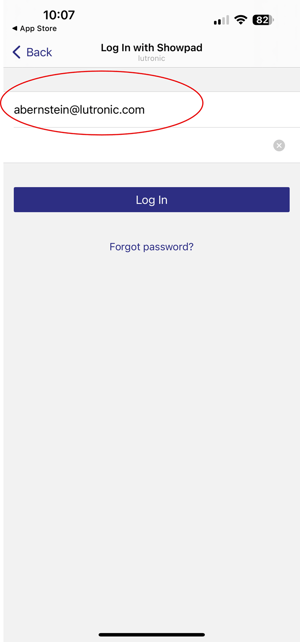
You will be redirected.
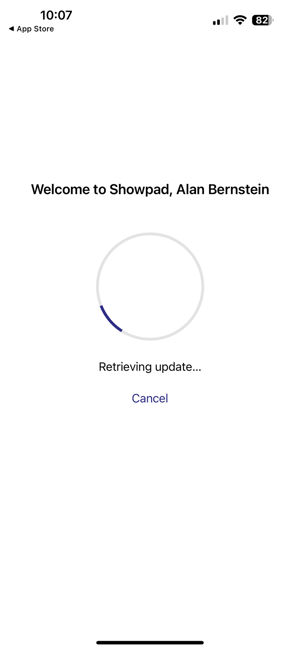
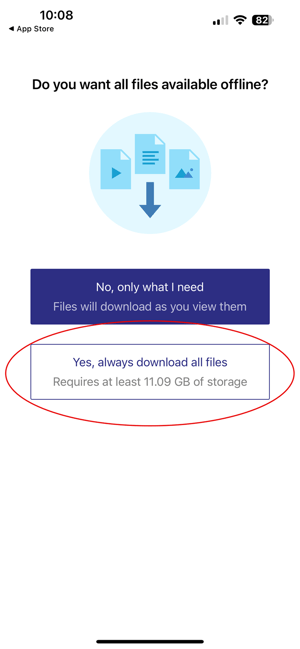
Click Yes, download all files to be able to access all your Showpad files without an internet connection.
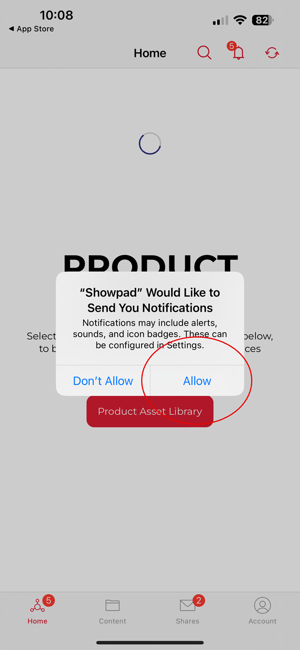
Click Allow Notifications to receive notifications from Showpad.
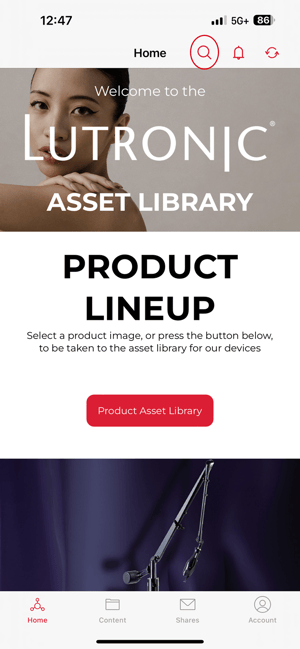
Tap the search button and type in specific keywords to perform a global search of all materials.
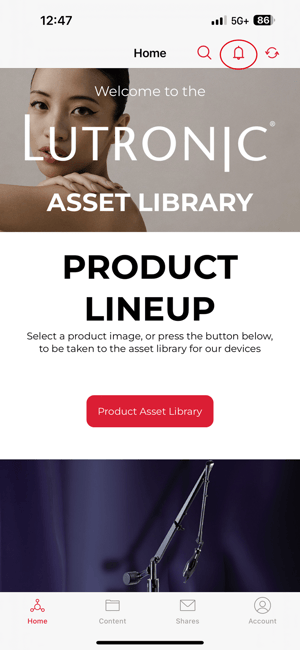
Keep an eye out for notifications. Tap the bell button to look at recent notifications.
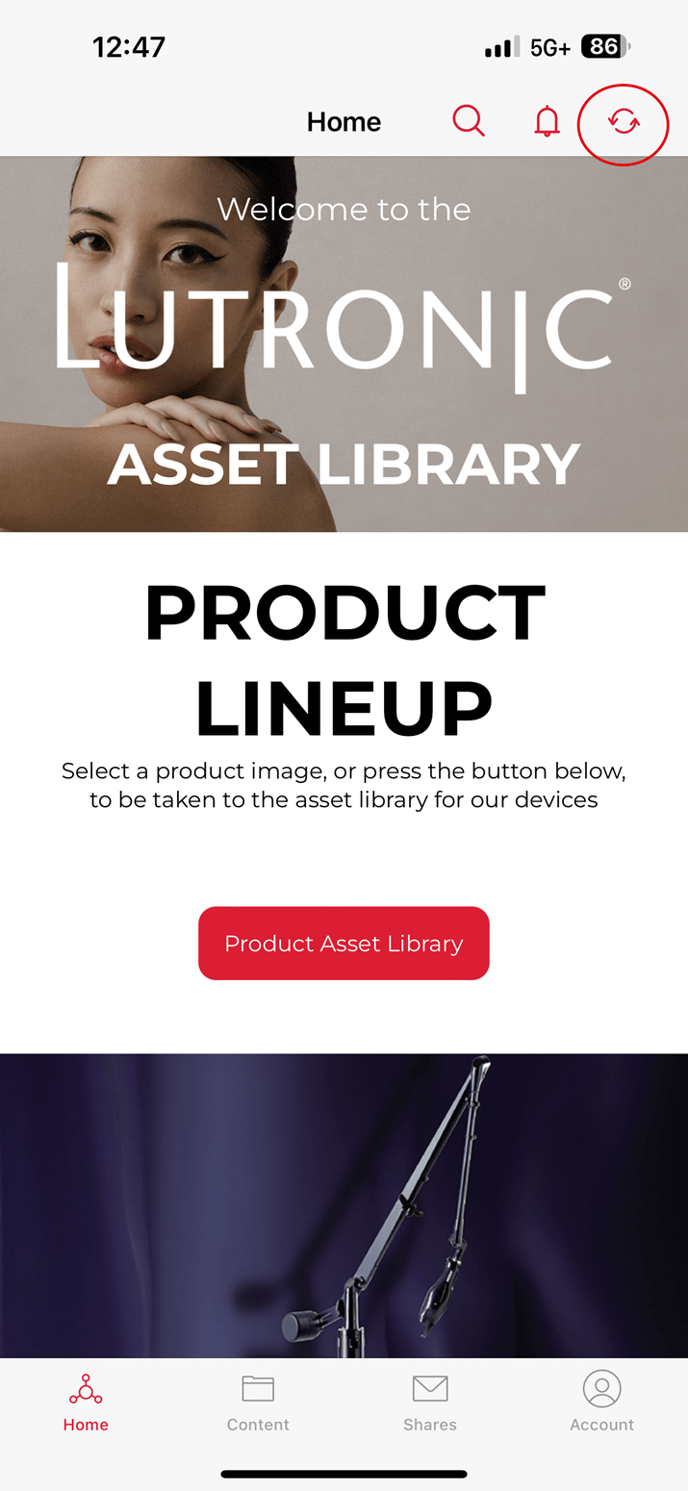
Tap the refresh button when once in a while or when you see a notification to refresh ShowPad materials.
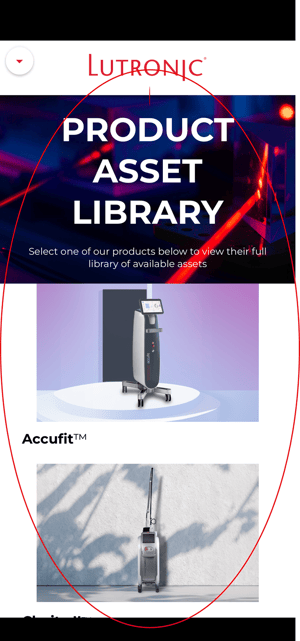
On the homepage, click on Product Asset Library to view the materials for each device.
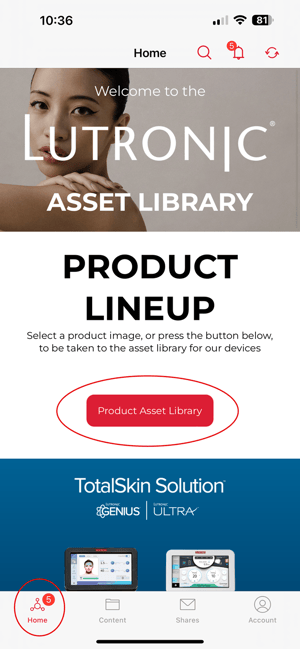
You will see a picture of all the devices as you scroll down. Click on one device to find the materials you want.
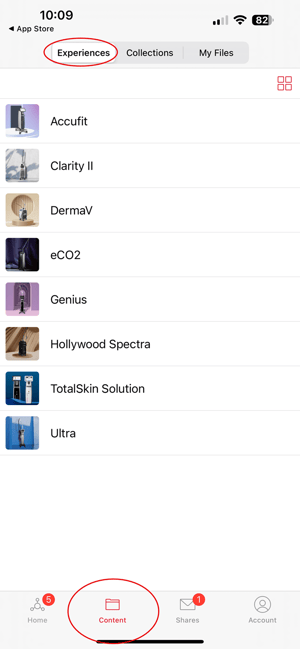
You can also go to Content to find the materials for each device, in the Experiences tab.
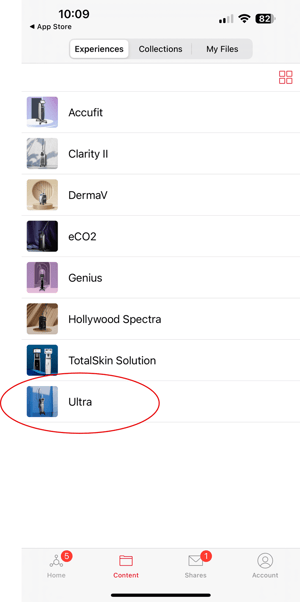
Click on a specific device.
Continue going through the files to find the materials you need.
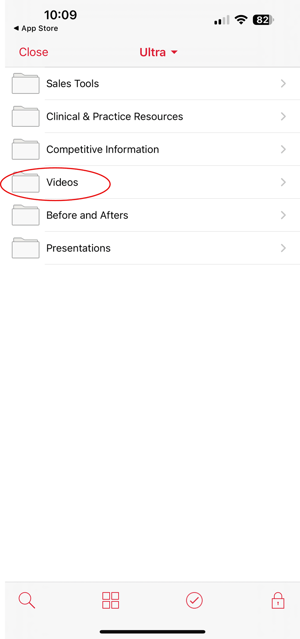
Continue going through the files to find the materials you need.
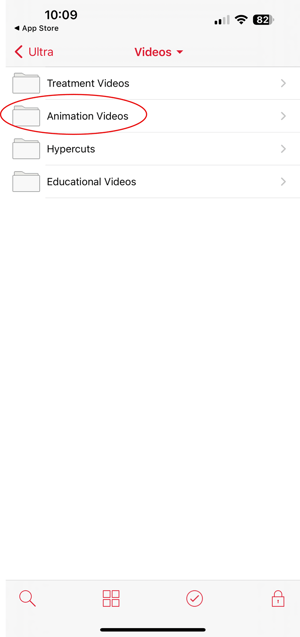
Click on the material you want.
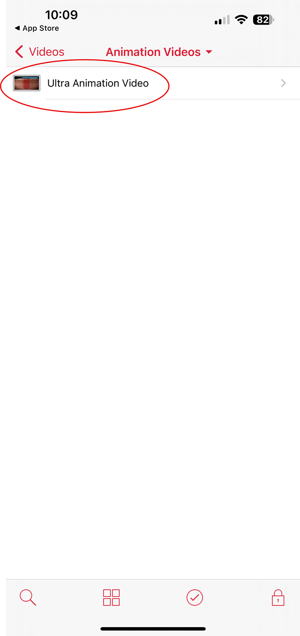
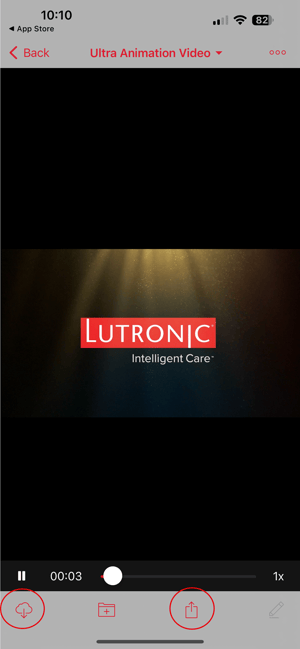
You will be able to watch the video, download the video to your phone, or send it to someone.
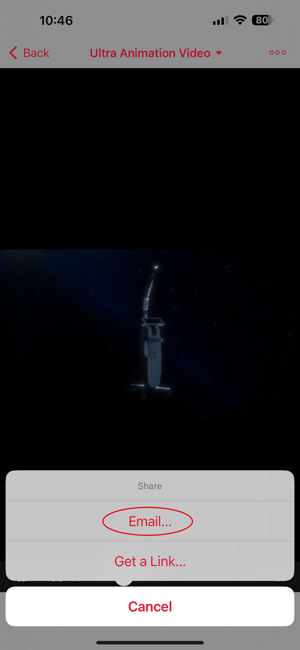
Click on email to email the file to someone.
Enter in the email address you wish to send the file to, add a title, and add a description.
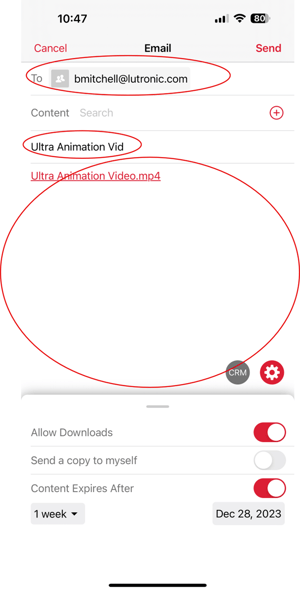
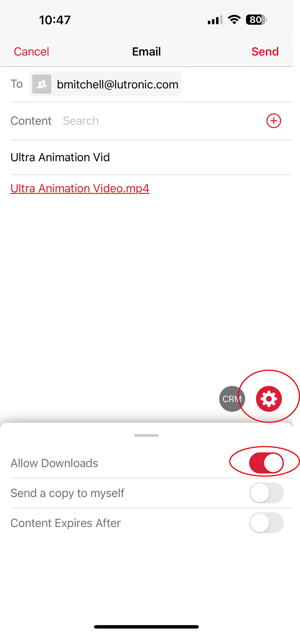
Click on the gear icon in the bottom-right corner to change settings. You can allow the person receiving the file to download the file.
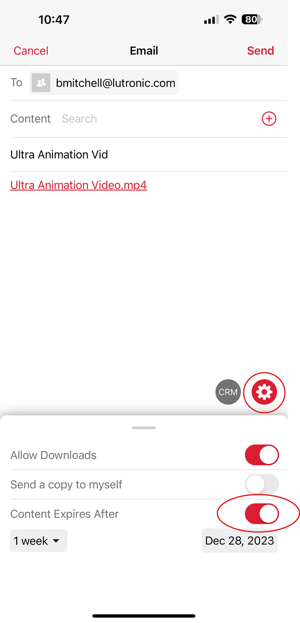
You can also force the content to expire after a specified amount of time of your choosing.
To track the activity of the material you sent out, go to the Shares tab and go to Email & Links.
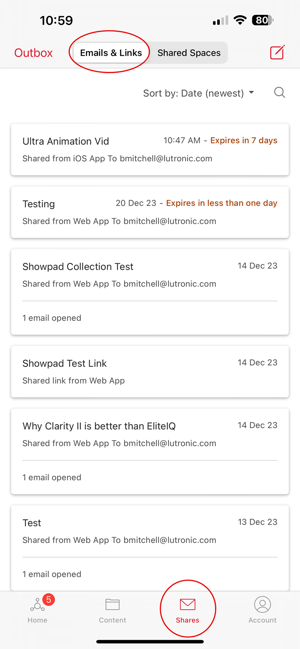
Here, you will see the activity of the content you sent out. Here, we see no activity yet.
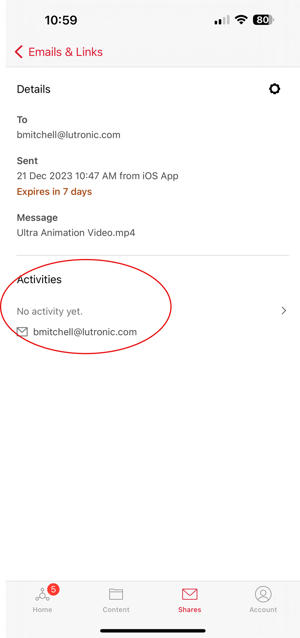
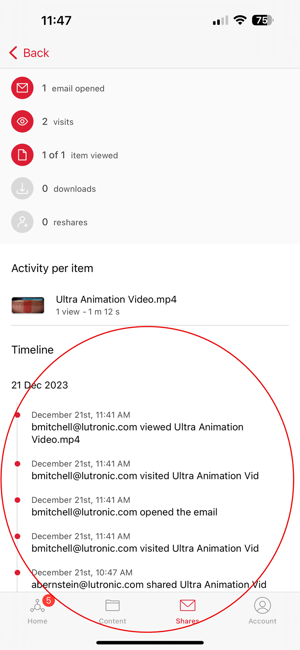
Once there is activity, you will see a change. Click on this activity to see further details.
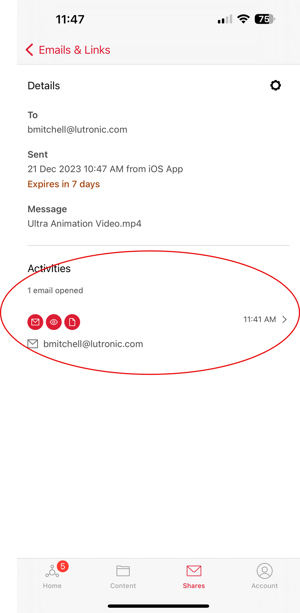
Here, you will see the timeline of activity of your sent out material.
Back in the Content tab, you can find your Collections. View the Collections walkthrough for more info.
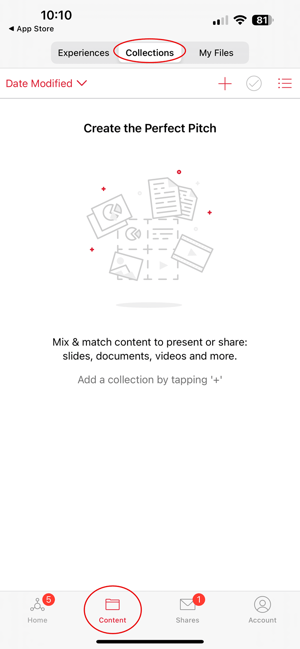
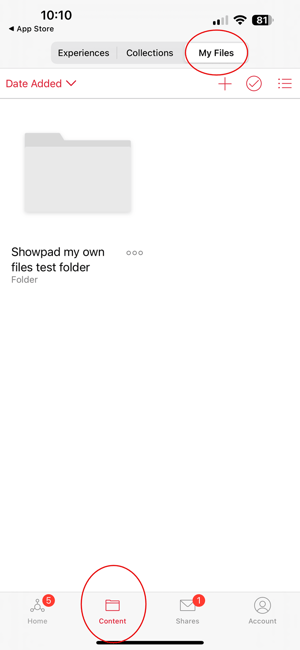
In the Content tab, you will also find My Files, where you can upload your own files. View the Uploading your Own Files walkthrough for more info.
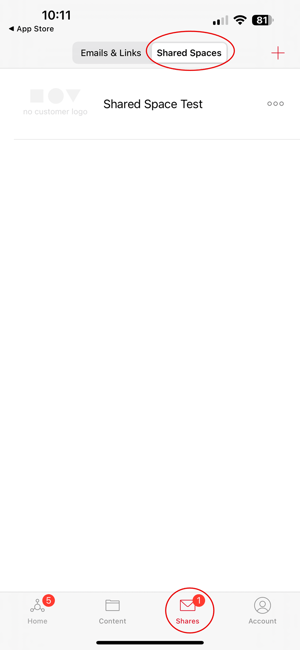
In the Shares tab, you will also find your Shared Spaces. View the Shared Spaces walkthrough for more info.